CBAM Compliance · guides Open the app
Administrator · owner

Run the installation: ready, configured and on the official data.

Three steps: check readiness, configure, and keep the reference data current. Your users then never have to wonder which rule or price the app is using.

1.44Türkiye grey cement default (1.36 + 0.08), read from the annex
0.89Namibia — “NA” is a country, never “missing”
€82.32Q3-2026 certificate price in the shipped snapshot
Before you start

Three owner pains — solved one by one

Running a compliance system means answering for its configuration and its data.

Is sign-in enforced, the database connected, the encryption key set?
The readiness check lists every requirement and its state; a key generator helps you set the one key you must keep forever.
See how → Readiness check
Company profile, notifications, integrations, AI — scattered and risky.
One Settings page with sections, and an AI page that can never produce a figure.
See how → Settings & AI
Which defaults, benchmarks and prices is the app using — and are they current?
Reference data shows every official value and its source; Regulatory shows the verified snapshot, its age and sources.
See how → Reference data
Solved as you read: 0 of 3
  • Is it production-ready?
  • Configuration sprawl
  • Stale reference data
Step 1 of 4 · Readiness

Check the installation is ready for production

/setup

Required: the database is connected and an encryption key for secrets at rest is set. Recommended: sign-in enforced, the AI assistant configured, autonomous updates on.
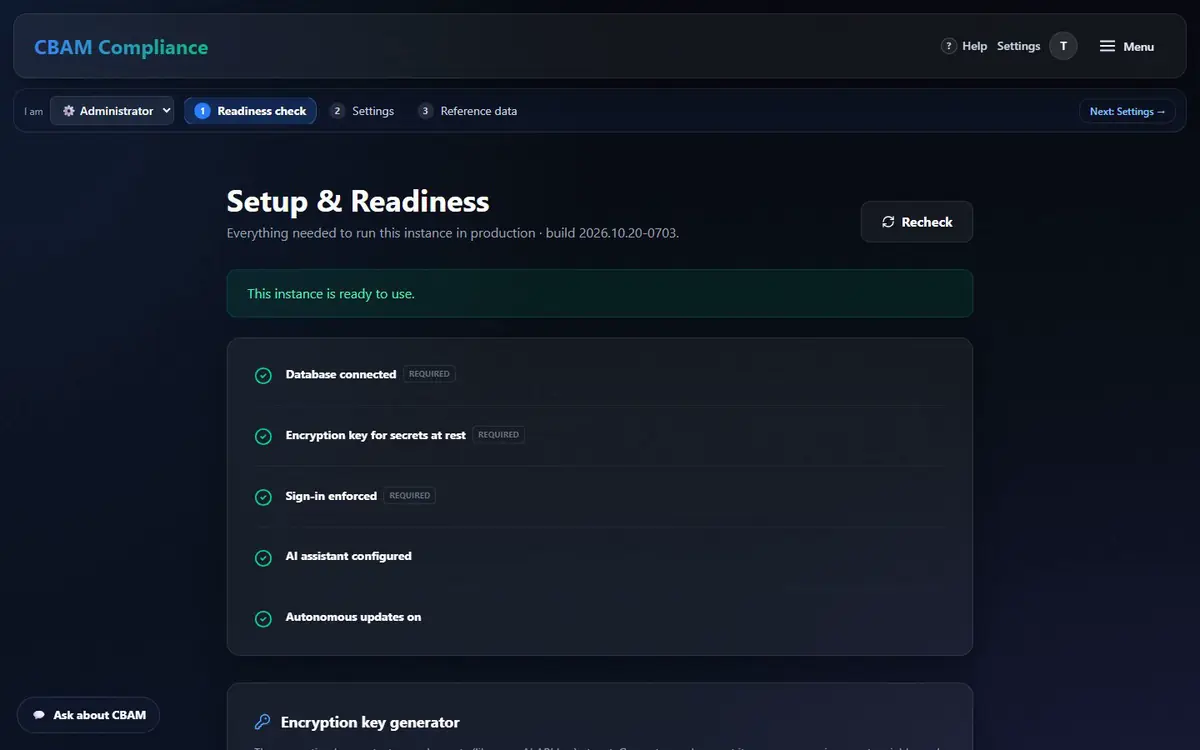
Setup & Readiness: instance ready, checks and the encryption key generator
  1. Open Readiness check; press Recheck after any change.
  2. Missing the key? Generate a key and set it as FIELD_ENCRYPTION_KEY. Keep it forever — it decrypts stored personal data.
  3. Production must run with sign-in enforced: /health reports auth: enforced.
  4. Mail (SMTP) is needed for supplier invitations, reminders and verifier invitations.

Every tab, mode and control here

Checks
Database · Encryption key · Sign-in enforced · AI assistant · Autonomous updates.
Encryption key generator
Generate a key.
Open the Readiness check →
Step 2 of 4 · Settings

Configure the company, notifications, integrations and AI

/settings/ai-settings

Settings holds the company profile used on reports and the platform configuration. AI settings choose the provider; the AI only explains and guides — it never produces a figure.
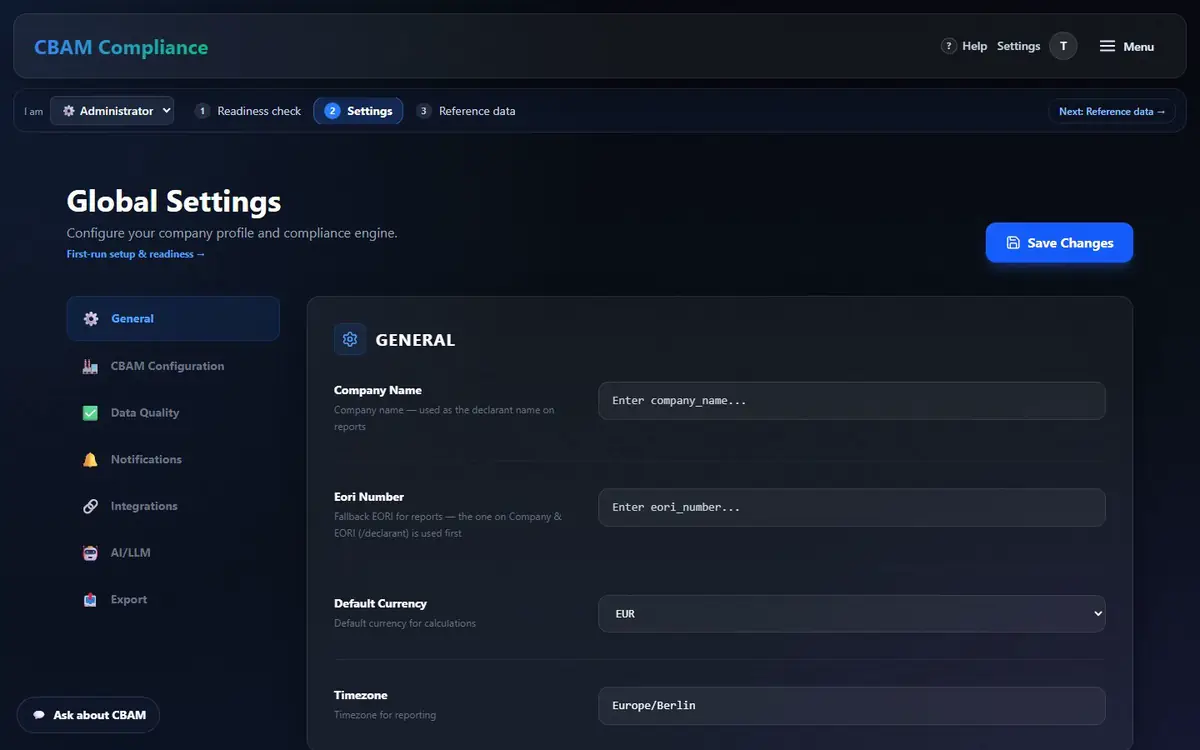
Global Settings with its sections and Save Changes
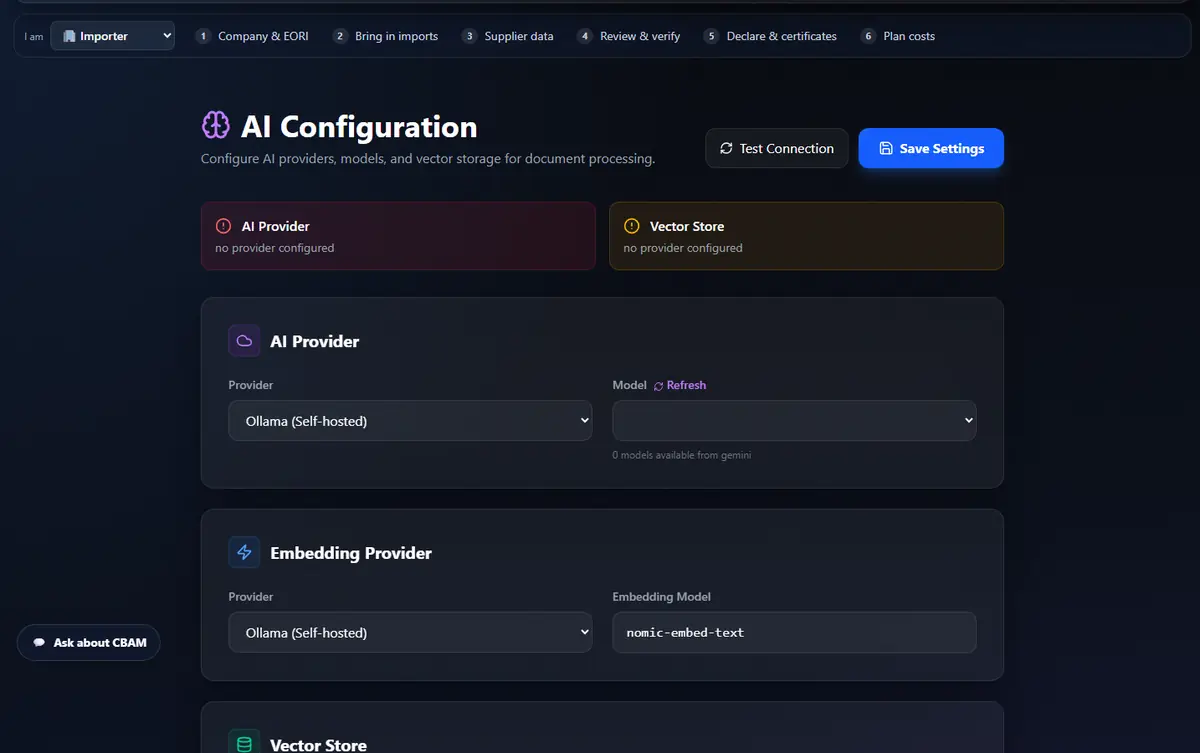
AI Configuration: provider, embeddings, vector store
  1. Open Settings; walk the sections ⚙️ General, 🏭 CBAM Configuration, ✅ Data Quality, 🔔 Notifications, 🔗 Integrations, 🤖 AI/LLM, 📤 Export → Save Changes.
  2. Open AI settings: AI provider and model, embedding provider, vector store → Test Connection → Save Settings.
  3. Whatever the provider, the number guard applies: an answer with a figure not in its sources is replaced by the Help answer.

Every tab, mode and control here

Settings sections
General · CBAM Configuration · Data Quality · Notifications · Integrations · AI/LLM · Export.
AI settings
AI Provider · Embedding Provider · Vector Store · Environment Variables · Test Connection · Save Settings.
Open Settings →
Step 3 of 4 · Team

Give each colleague the right role

/team

Team lists everyone in your account. Add a colleague by e-mail and pick a role: Admin manages the team, Declarant prepares and files, Viewer sees everything and changes nothing, Verifier is read-only and records review outcomes. The server enforces the role on every action — and a change signs the person out at once.

  1. Open Team → type the colleague's e-mail, pick a role → Add to team. They sign in with that address (a link and a code, no password) and land in your account.
  2. Change a role in the table, disable someone (they are signed out) or remove them. Nobody can change their own access, and the last admin always stays.
  3. An address that already has its own account can't join another one — use a different address.
  4. Platform administrator: new sign-ups wait under Access requests on this page → Approve or Reject. The person is e-mailed when approved. Colleagues you add and auditors a client invites get in at once.

Every tab, mode and control here

Roles
Admin · Declarant · Viewer · Verifier — read-only roles are refused on every write, on the server.
Members
E-mail · role · status · last sign-in · disable / re-enable / remove.
Open Team →
Step 4 of 4 · Reference data

Keep the official data current — and see its source

/admin/default-values/regulatory/data-sources

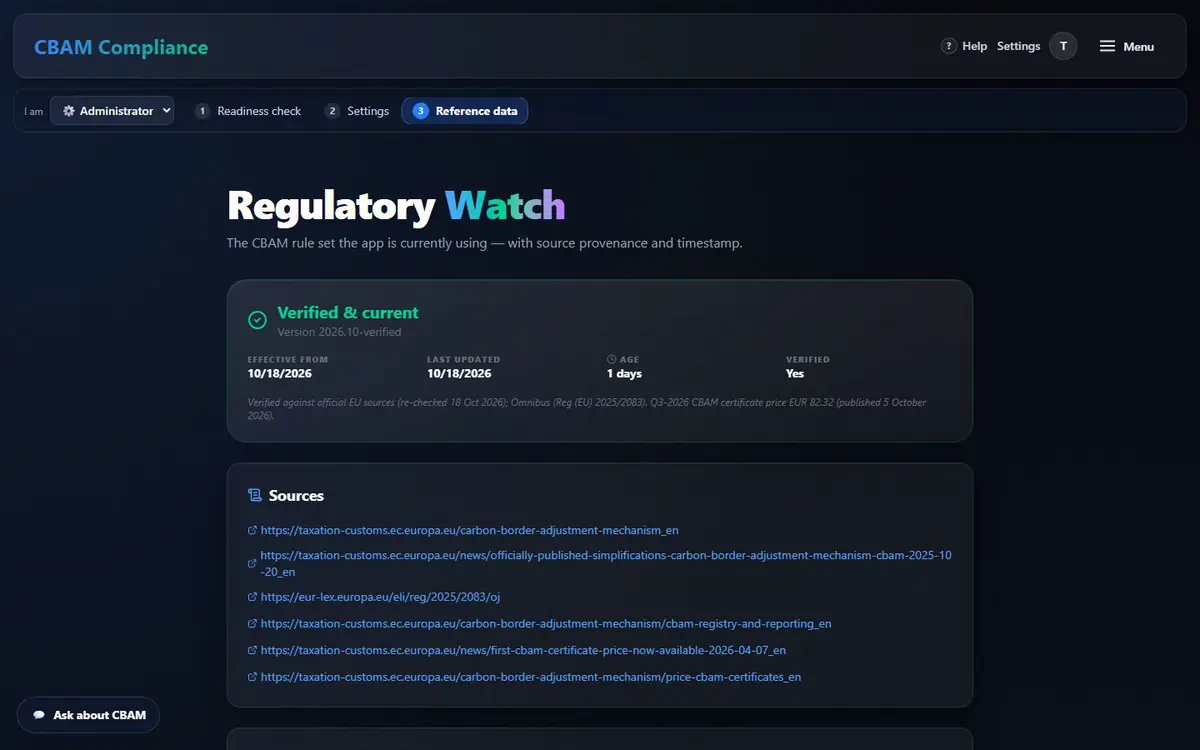
Default values come from the official annex (Reg 2026/1740), read cell by cell. The regulatory snapshot holds phase-in, holding, de-minimis, mark-up, deadlines and the price — with its sources and age. A deploy activates a newer shipped snapshot.
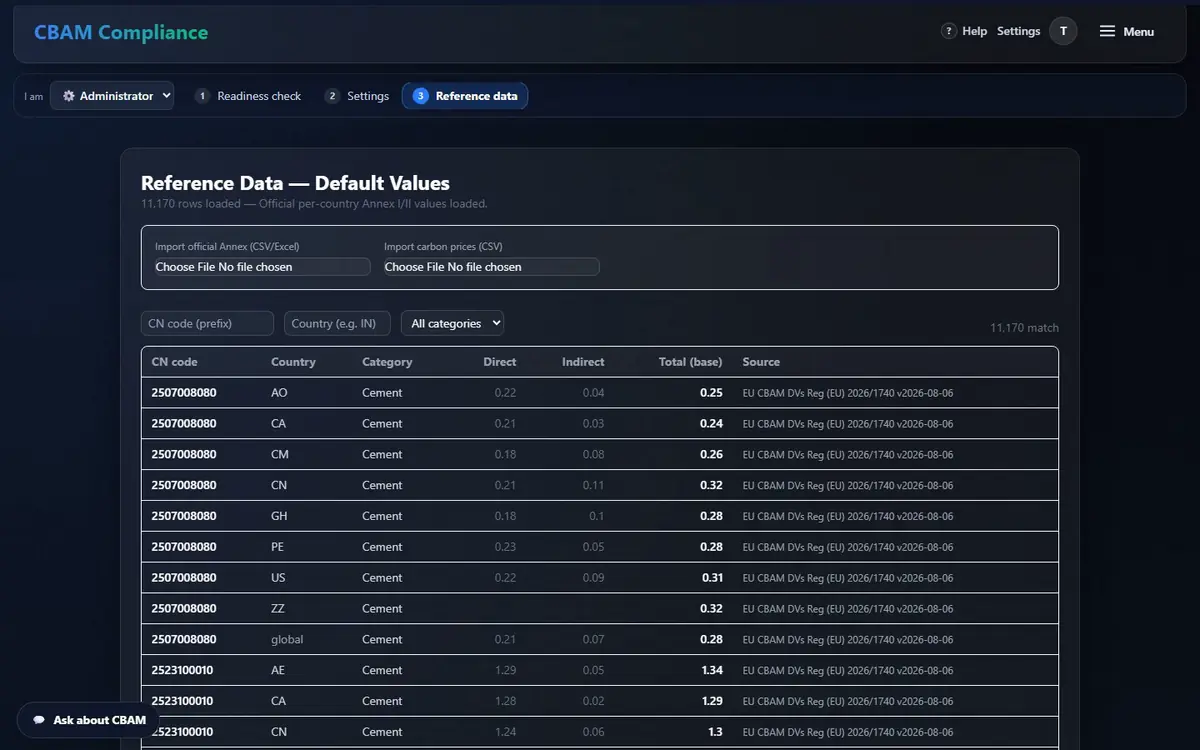
Plain text extraction shifts rows; reading cell by cell does not. A “-” in the annex is never stored as 0, and the autonomous feed may never downgrade the official set.
Reference Data — Default Values: imports, filters and the table with sources
Regulatory Watch: verified & current snapshot with sources
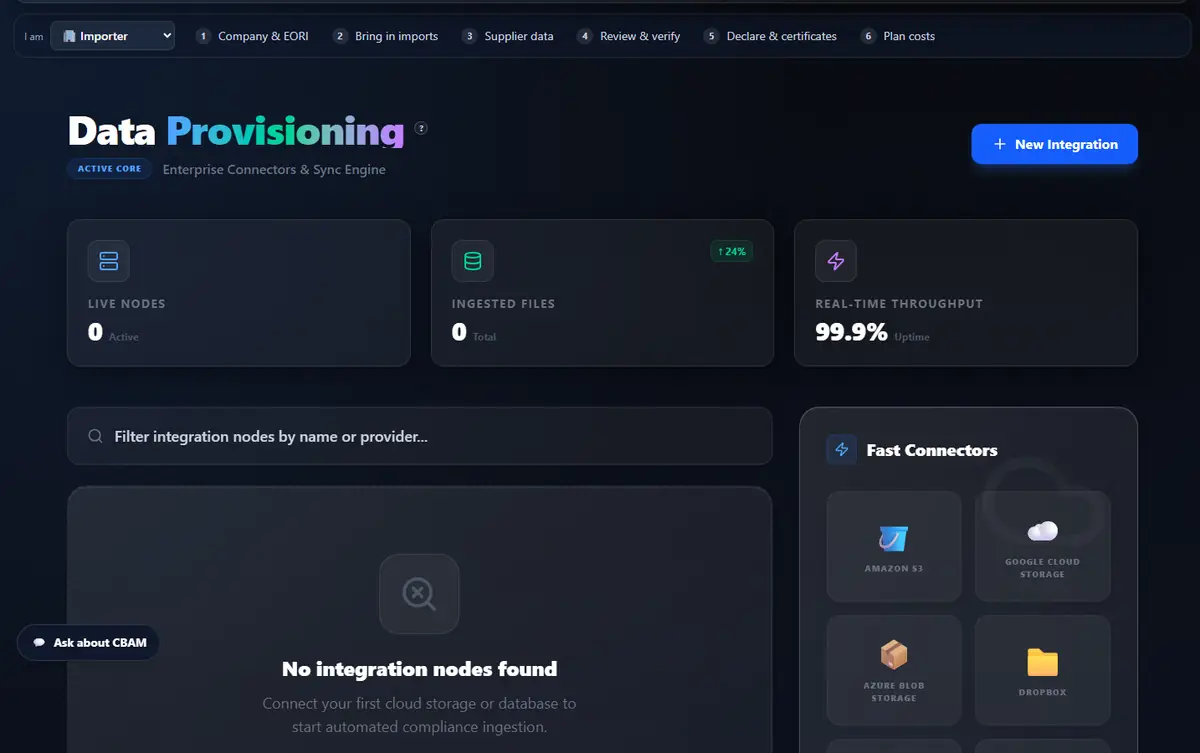
Data Provisioning: connectors
  1. Reference data: browse every default (direct, indirect, total, source); filter by CN prefix, country and category; Previous / Next.
  2. Import a new official annex (CSV/Excel) or carbon prices (CSV) only from the Official Journal / Commission.
  3. Regulatory: check “Verified & current”, the version, its age, the sources and the active parameters.
  4. Each quarter the published price is added to the shipped snapshot; a deploy alone clears the “stale” banner.
  5. Data sources: connect storage (S3, Drive, SharePoint, SFTP…) with New Integration. Extra admin screens: meters (/admin/meters), ETS scenarios (/admin/ets-scenarios).

Every tab, mode and control here

Default values
Imports · filters · table with source · paging.
Regulatory Watch
Verified & current · Sources · Active Parameters.
Data sources
New Integration · Integration Blueprint · Fast connectors.
Open Reference data →
Trust

Why the numbers can be trusted

The installation is only as good as its data and its configuration. These mechanisms keep both honest.

Official EU annexes, read cell by cell

Default values come from the Official Journal, extracted cell by cell (plain text extraction shifts rows). Example: Türkiye grey cement 1.36 + 0.08 = 1.44 tCO₂e/t; “NA” is Namibia (0.89), never “missing”.

scripts/import_annex_ii_iii.py · default_values_repo

It fails closed, never guesses

If official reference data cannot be read, the app answers “nothing was calculated” (503) instead of substituting a value. An unknown country or unit is a reported row error, never a best effort.

app/core/reference.py · customs_import.py · iso_countries.py

Numbers only from the engine

Every emission, certificate and euro figure is computed by one calculation engine. The AI assistant explains and guides, and is blocked from stating a figure — it routes you to the calculator.

api/app/services/cbam_engine.py · AI number guard (support_guide.py)

Self-hosted, PII encrypted

The platform runs in your own cloud. Personal data is encrypted at rest with your own key, and supplier links are sealed, never stored in plain text.

FIELD_ENCRYPTION_KEY (Fernet) · supplier_reminders.token_enc

Every role sees the same figure

Importer, supplier, verifier and the engine show the identical result — checked live: the Anatolia Light Metals aluminium plant is SEE 1.53 for all four. All 25 Annex I routes recompute byte-identically, in any entry order.

tests/test_reproducibility.py

What we do not claim: the app prepares and validates your declaration XML — it does not file in the EU CBAM Registry for you, and it is not itself an accredited verifier or a certification. Forecast prices are assumptions, never certified figures.

Nothing missed

Coverage checklist

Every screen, tab, mode and drawer of the admin workflow, mapped to the section that explains it — 7 screens, 12 items, 100 % covered. The same list is checked by an automated browser test against the app.

Route + tab → guide section (12 items)
RouteTab / mode / controlSection
/setupReadiness checks + RecheckReadiness check✓
/setupEncryption key generatorReadiness check✓
/settingsSections: General / CBAM Configuration / Data Quality / Notifications / Integrations / AI/LLM / ExportSettings & AI✓
/settingsSave ChangesSettings & AI✓
/ai-settingsAI Provider / Embedding Provider / Vector StoreSettings & AI✓
/ai-settingsTest Connection / Save SettingsSettings & AI✓
/teamAdd to team: e-mail + roleTeam & roles✓
/teamMembers: role, status, last sign-in, disable / removeTeam & roles✓
/admin/default-valuesImport official Annex / carbon pricesReference data✓
/admin/default-valuesFilters + table + pagingReference data✓
/regulatoryVerified & current · Sources · Active ParametersReference data✓
/data-sourcesNew Integration · connectorsReference data✓