From the customs file to a filed declaration — with every figure proven.
Six steps, in the order the step bar shows them. Each one solves a pain you know: chasing suppliers, the default mark-up, the certificate bill, audits, and correcting a filed year.
1.53SEE tCO₂e/t — identical for importer, verifier, supplier and engine
€82.32Q3-2026 certificate price, published
+15,285.0788certificates: a 2026 amendment, matched by hand calculation
Before you start
Six pains every importer knows — solved one by one
Each card links to the step that removes it. As you read, the scorecard ticks them off.
Chasing suppliers for emissions data by e-mail and spreadsheet.
Invite them once: a secure link in their language, automatic reminders at 14, 7 and 2 days, and their figure arrives engine-computed.
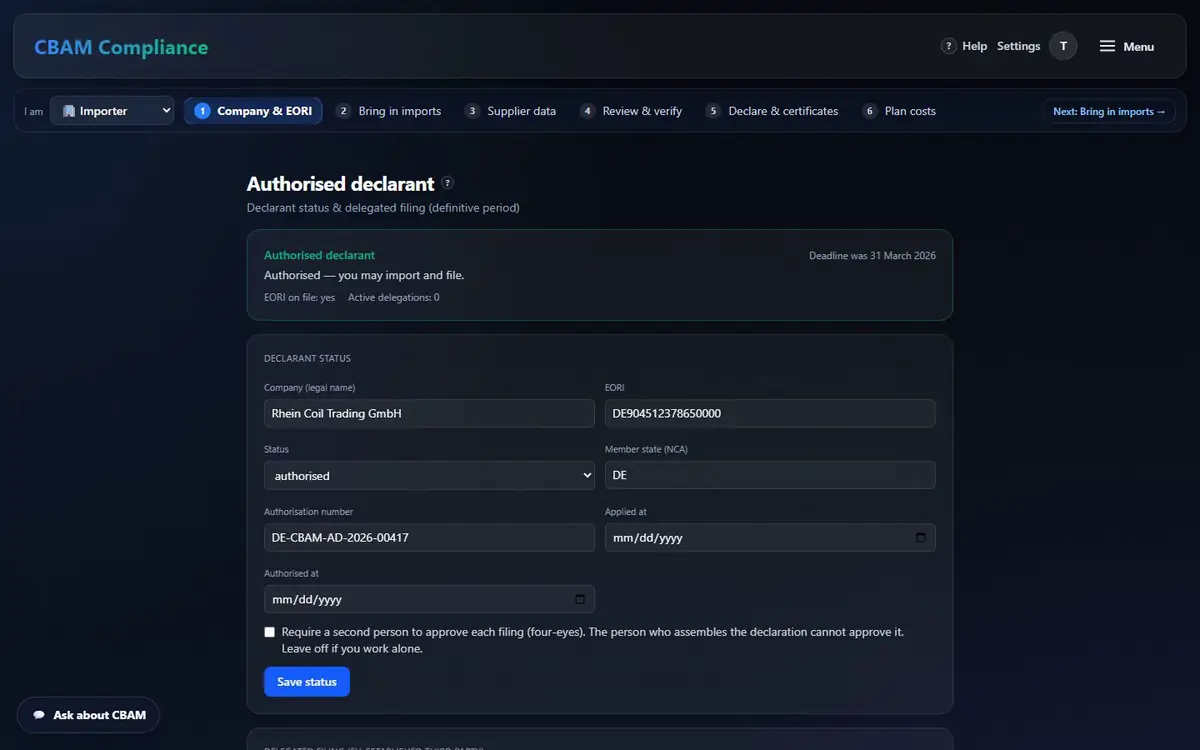
Your declarant name, EORI and member state go on every report and on the registry XML. Do it once; an incomplete profile is refused with a message saying exactly what to add.
Bring in your imports — the engine calculates every row
/customs-import/calculate/wizard/ingest
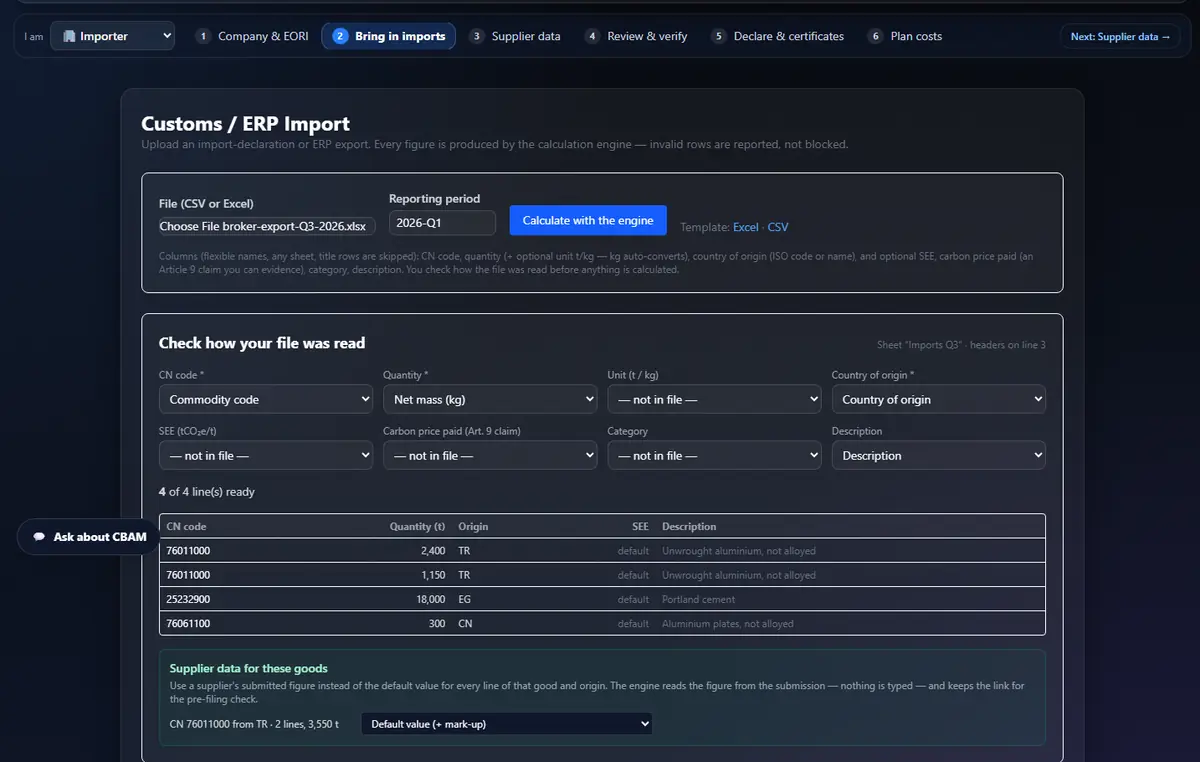
Upload the customs or ERP export as it is. You first see exactly how the file was read; only then does the engine calculate. Unclear rows are reported, never guessed.
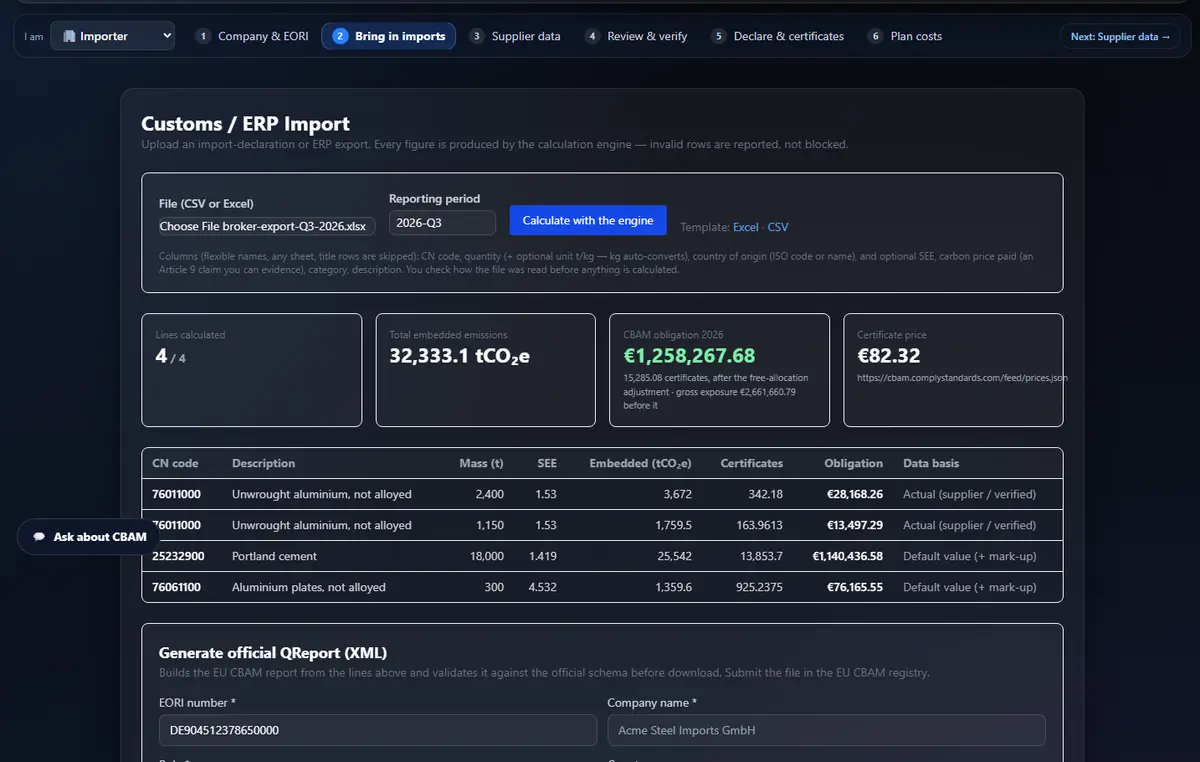
Rhein Coil Trading test file: aluminium from a verified supplier at SEE 1.53, the rest on official defaults + mark-up.
Open Bring in imports and choose the file (.xlsx, .xls or CSV — any sheet; title rows are skipped). Pick the Reporting period.
Read Check how your file was read: CN code, quantity (kg is converted to t), country of origin. Map any column by hand, or Try again.
Optionally link Supplier data for these goods so the row uses your supplier’s engine figure instead of the default.
Press Calculate with the engine. Each row shows its embedded emissions, certificates, obligation and data basis.
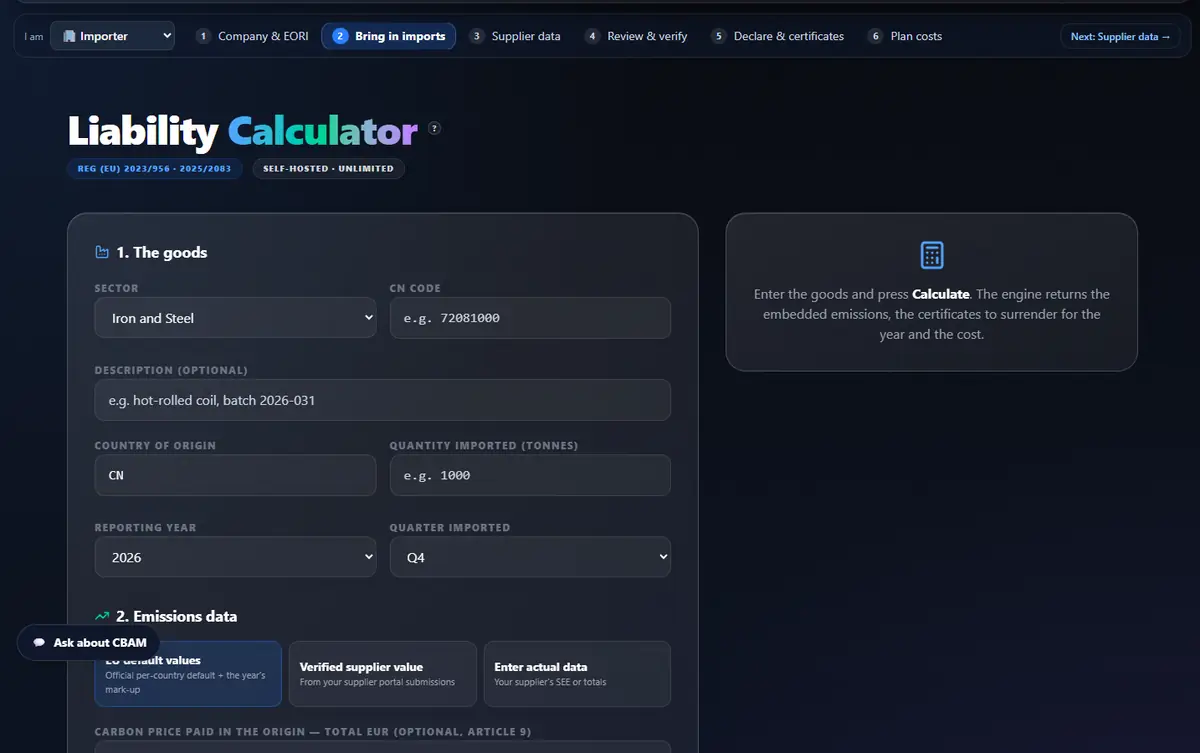
Need one batch by hand? Use the Calculator: 1. The goods, 2. Emissions data (EU default values · Verified supplier value · Enter actual data), then Calculate and Add to the declaration.
Paid a carbon price abroad? Enter the total EUR actually paid in the Article 9 field and keep the certified evidence. It is a claim: nothing is auto-credited.
Prefer guidance? The CBAM Wizard walks a shipment in 7 steps; Shipment ingestion validates a pasted CSV or extracts lines from a supplier document (Extract with AI → Ingest & validate).
Every tab, mode and control here
Customs import → Excel / CSV
Download a template in either format.
Check how your file was read
Preview + manual column mapping; a row with an unknown country or unit is an error, never a guess.
Results + Generate official QReport (XML)
Engine figures per line and the registry XML for the shipment.
Calculator · 1. The goods / 2. Emissions data
One batch: default, verified supplier value or actual data; Article 9 claim; add to the declaration.
CBAM Wizard · steps 1–7
Company, product, emissions… with Previous / Next and the AI assistant (which never states a figure).
Shipment ingestion
Paste or upload CSV/Excel, map columns, Extract with AI, Ingest & validate (de-minimis shown).
Example of an official default read from the annex: Türkiye grey cement 1.36 + 0.08 = 1.44 tCO₂e/t. No official default for a code → the engine refuses (422); it never invents a SEE.
Below 50 t a year (all CBAM goods together, per EORI) you are exempt — but crossing it brings the whole year into scope. Check it on Compliance.
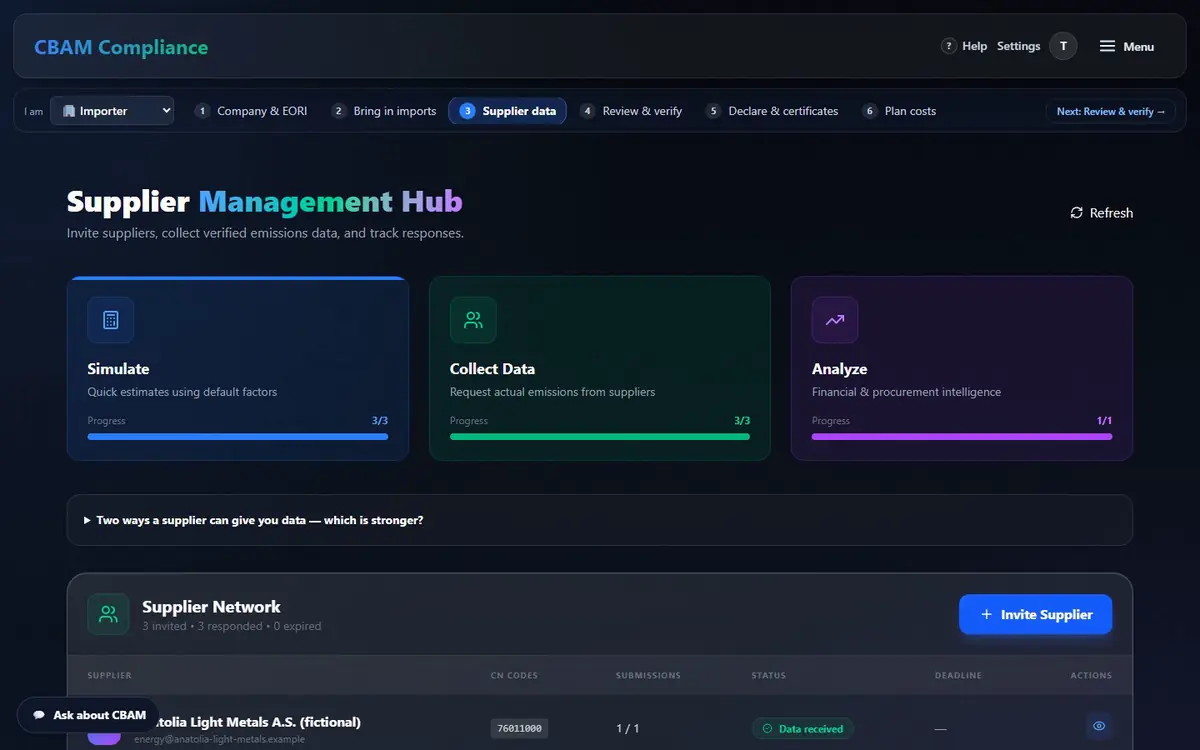
Real installation data replaces the default and its mark-up. Invite each supplier once; the app sends the link in their language and reminds them before the deadline.
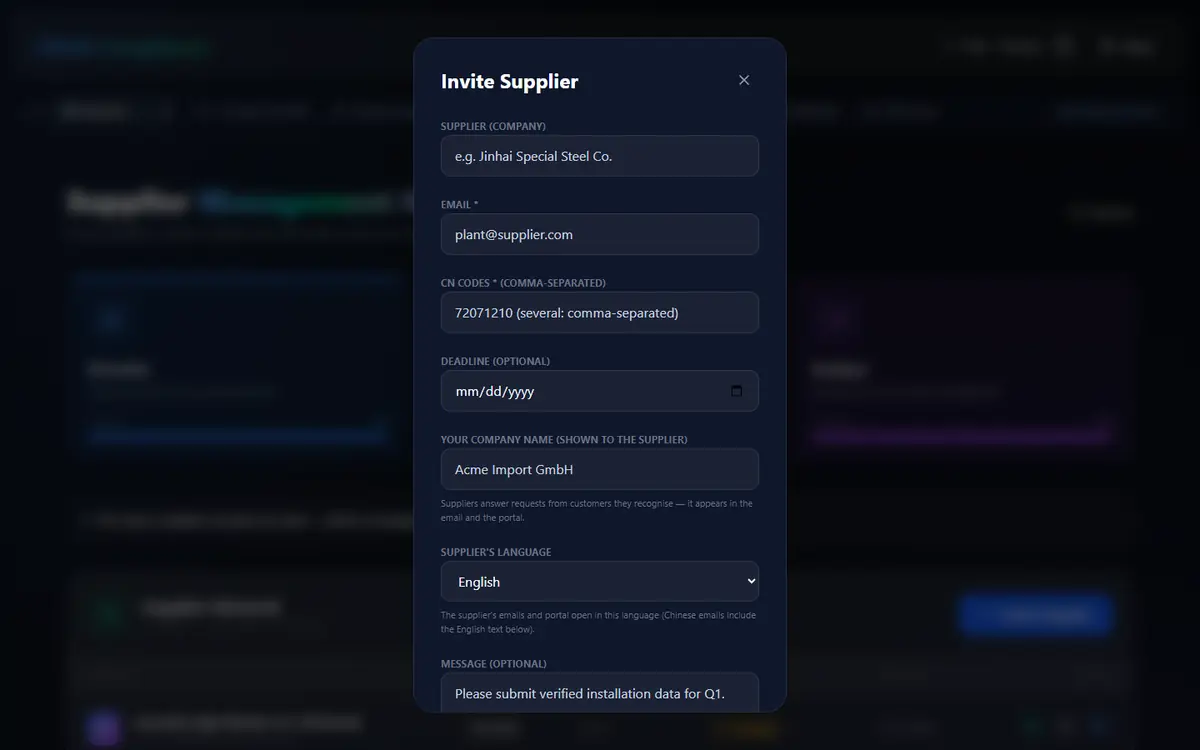
Press Invite Supplier: supplier company, e-mail, the CN codes you buy, an optional deadline, your company name as they will see it, their language and a message.
Press Create invitation. The supplier gets a secure link (no account needed). Without mail configured you get the link to send yourself — the app says so honestly.
Reminders go out automatically 14, 7 and 2 days before the deadline. Email a reminder … now sends one immediately; Pause automatic reminders stops them.
Open View submissions: Scope 1, Scope 2, SEE, basis, tier, evidence and the plant model. Link an existing plant reuses a plant already in your library; Unlink removes it.
Their precursors come from another plant? The supplier can request data from its own sub-supplier; the figure links up the chain automatically.
Every tab, mode and control here
Simulate · Collect Data · Analyze
Your progress from default estimates to real data.
Two ways a supplier can give you data
Portal totals vs a Balance Twin plant model — the model is the stronger evidence.
Supplier Network table
Status, CN codes, submissions, deadline and actions per supplier.
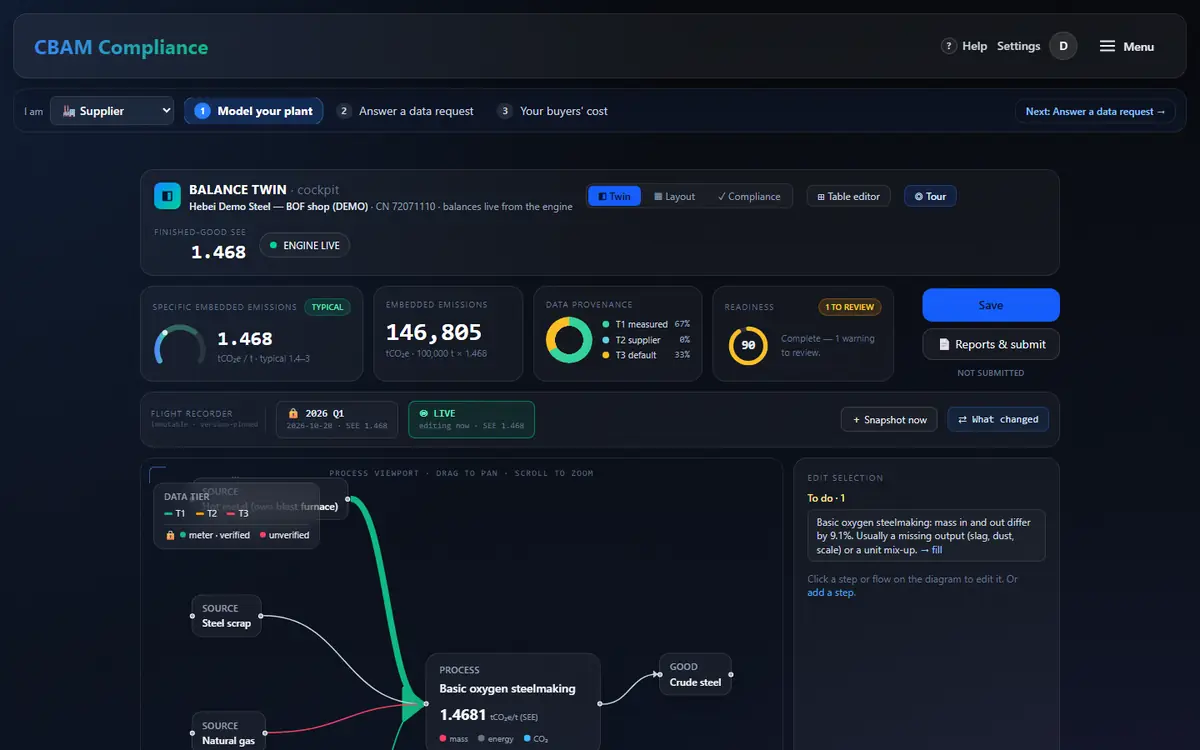
A plant model is the strongest evidence: inputs, process steps and the finished good, with every balance computed by the engine. Your supplier usually builds it in the portal; you can build or review one here. The full walk-through is in the Supplier guide.
Open Balance Twin and press New plant model (name + CN code → Create and open the editor), or Edit / View / Analytics a plant in the list.
In the cockpit, click a box or arrow on the canvas; edit it in Edit selection. Fields still needed are listed under To do. Press Save when it is green.
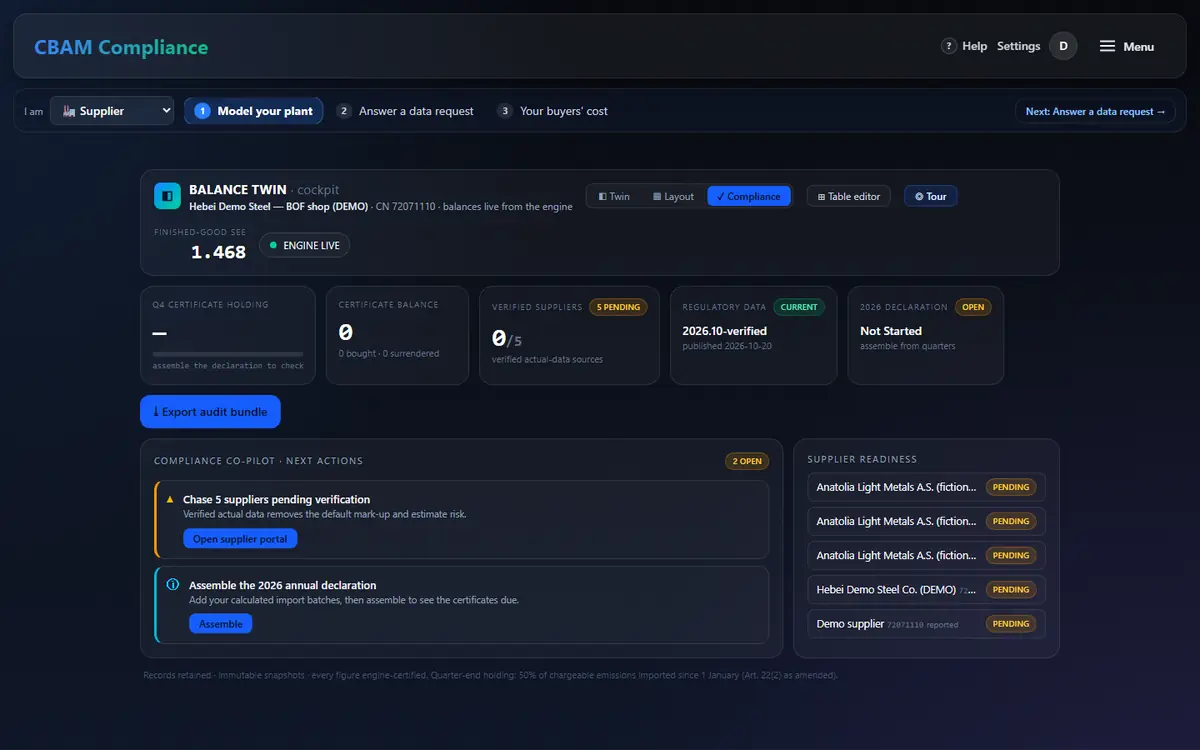
Switch views: ◧ Twin (model), ▦ Layout (the physical plant), ✓ Compliance (certificates, declaration and deadlines with buttons that act).
Bulk entry? ⊞ Table editor. New here? ◎ Tour.
📄 Reports & submit: submit for review (frozen snapshot), PDF report, registry XML, audit bundle. + Snapshot now freezes a period; What changed diffs it against live.
Every tab, mode and control here
◧ Twin / ▦ Layout / ✓ Compliance
The three cockpit views of one plant.
⊞ Table editor (/build)
Choose product → Fill in amounts → Review → Done; paste figures or upload CSV/Excel.
Lot analytics (/analytics)
Batches over time: SEE trend, lot-to-lot variance, hotspots.
Flight recorder
Immutable, version-pinned snapshots and a What-changed diff.
Meter evidence drawer
A metered flow takes its amount from a locked, geo-checked meter photo.
Review supplier figures and give your verifier read-only access
/verification/enterprise/verifiers
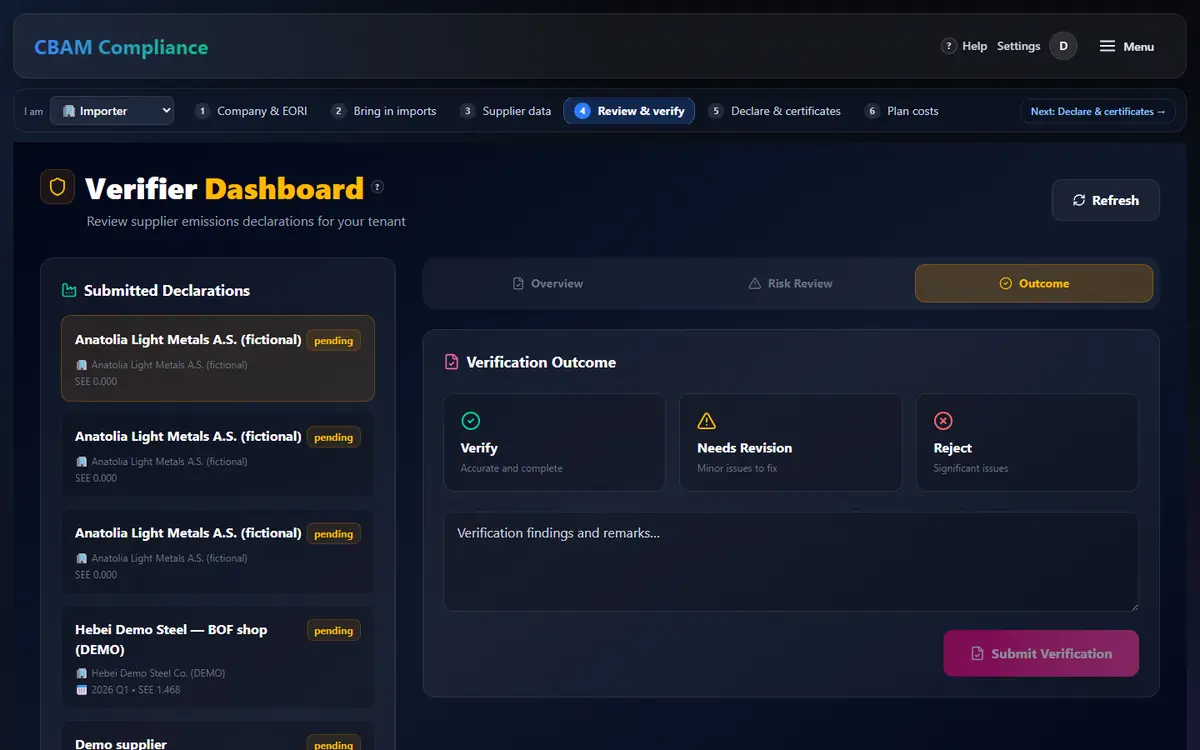
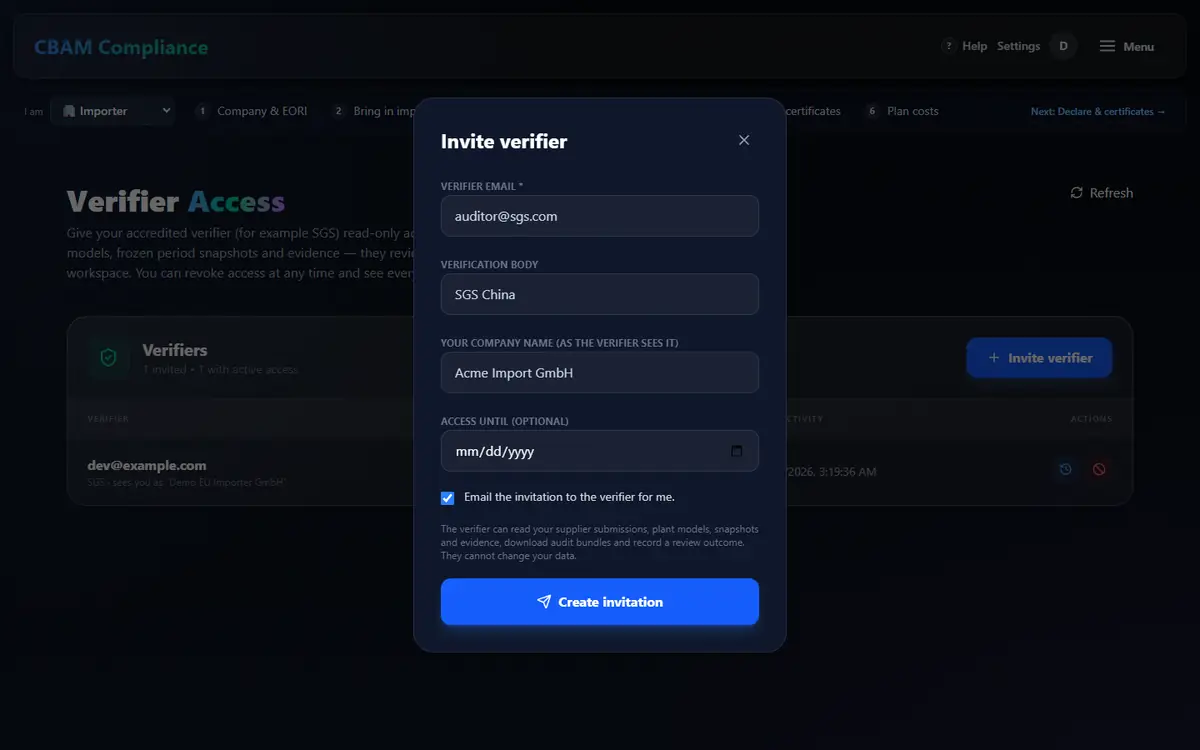
Check what suppliers sent, then invite your accredited verifier (for example SGS). They work in their own workspace, read-only, and everything they open is logged for you.
Open Review & verify; pick a supplier submission under Supplier submissions.
Read the tabs: Overview (summary, SEE breakdown, signatory, data tier), Risk Review (where the SEE sits against the range), Outcome.
Record your own review (Verify / Needs revision / Reject + remarks) and press Submit Verification.
Open Verifier Access → Invite verifier: e-mail, verification body, your company name, access until; tick e-mail the invitation for me → Create invitation.
See what they opened: Activity. End it any time: Revoke access.
Every tab, mode and control here
Overview · Risk Review · Outcome
The three tabs of a submitted declaration.
Invite verifier (dialog)
E-mail, body, name, access until, e-mail it for me.
Activity
The access log: every read and download by the verifier.
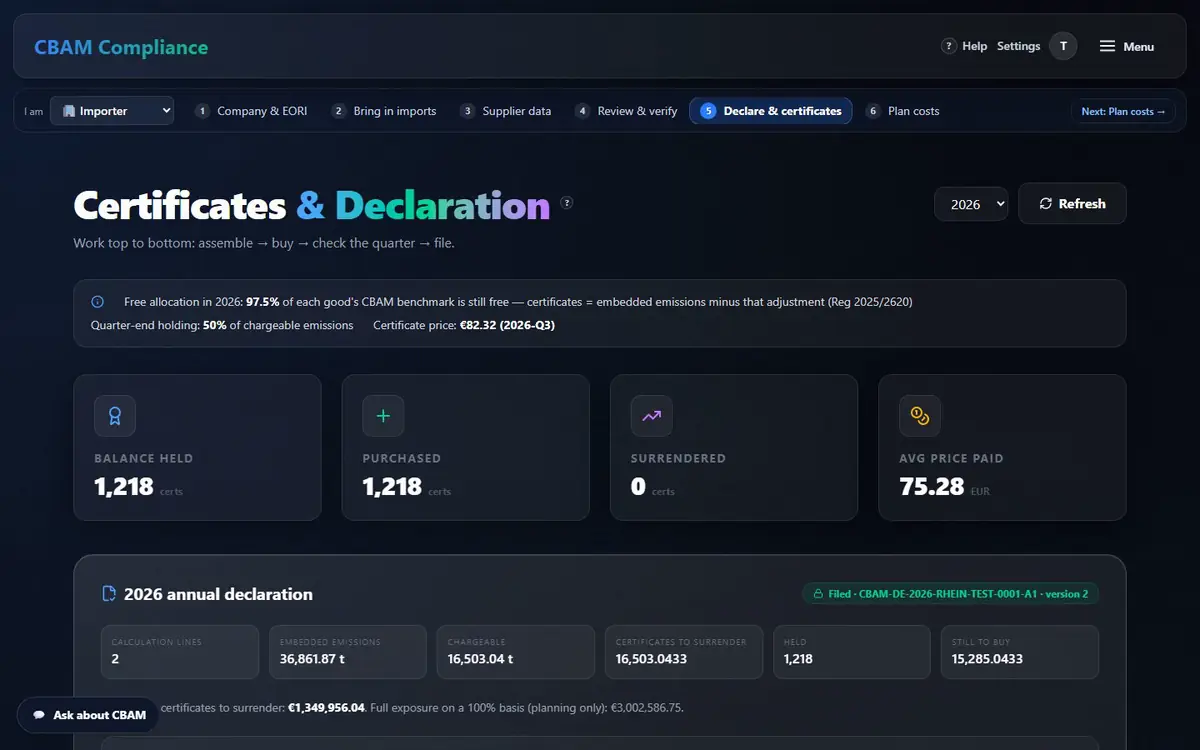
Work top to bottom: assemble → buy → check the quarter → file. The declaration files exactly the engine’s per-line certificates; the pre-filing check stands between you and an audit finding.
Embedded emissions
− free allocation adjustment
= certificates
certificates=embedded−benchmark × free share × CSCF × t
The free share phases out year by year (Reg 2025/2620), so the same imports need more certificates each year. Bar heights are illustrative — your figures come from the engine; never “embedded × 2.5 %”.
Pick the Reporting year. In Import batches tick the calculations that belong in the declaration (Calculate another batch adds one).
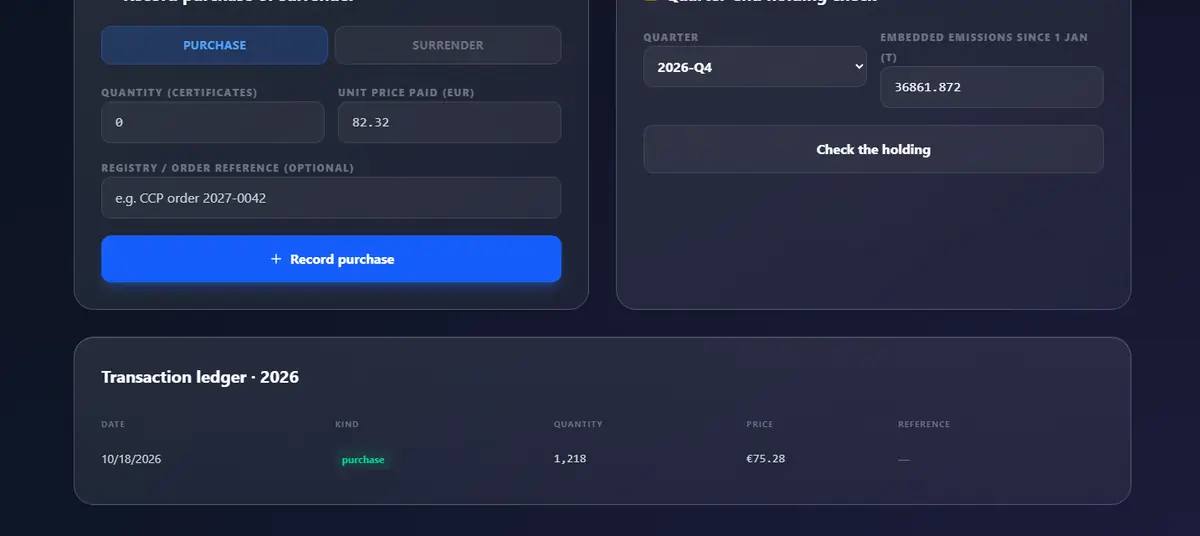
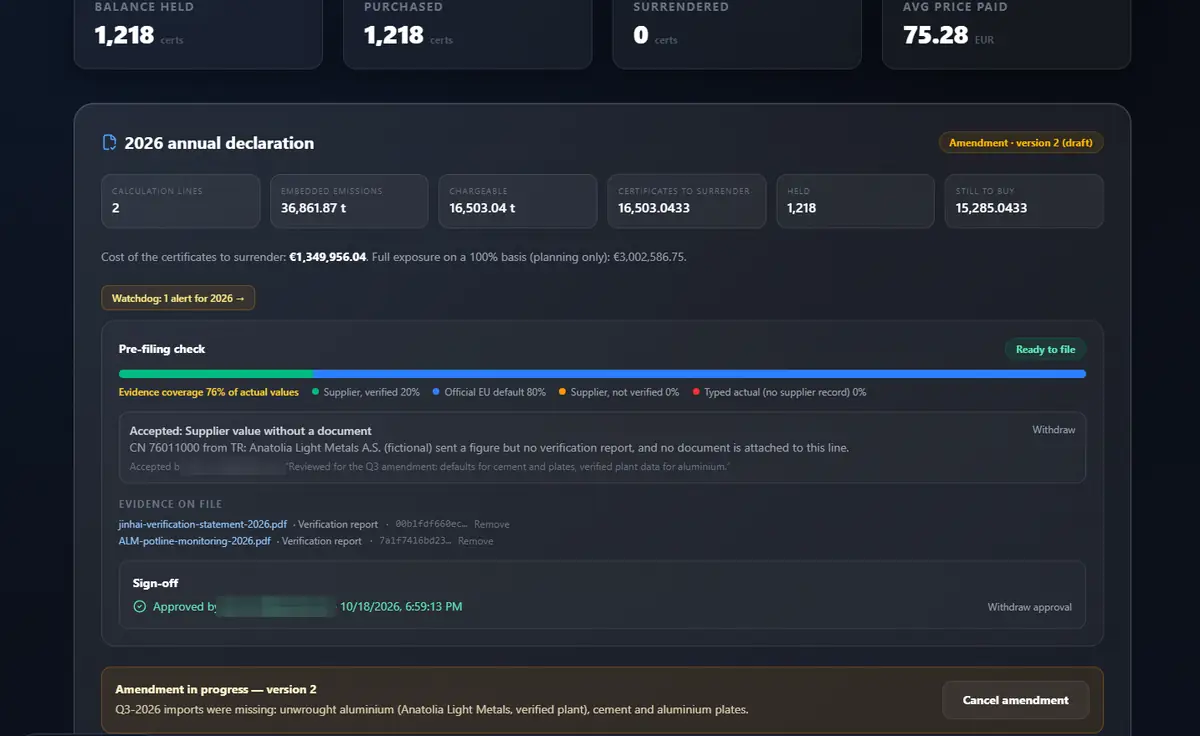
Press Assemble 2026 declaration (the year you picked). You see lines, embedded, chargeable, certificates to surrender, held and still to buy — and their cost at the published price (Q3-2026: €82.32).
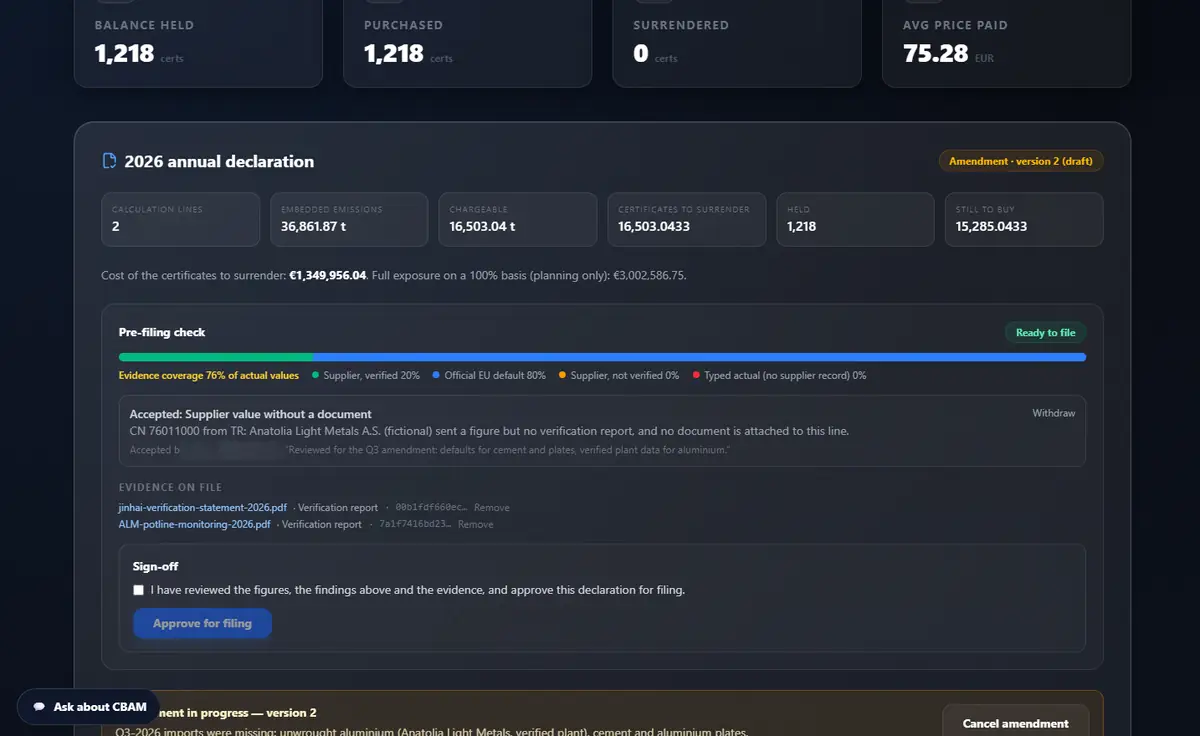
Pre-filing check: fix every red finding; Acknowledge each amber one with a reason (Accept with this reason). Attach evidence to the line it supports (Attach evidence…, choose the Document type).
Tick the sign-off and press Approve for filing. The approval covers exactly what you saw — any change voids it; with four-eyes, someone else must approve.
Buy: Buy N certificates prefills the purchase; Record purchase (or SURRENDER) with the price and an order reference. Check the holding tests the quarter-end 50 % holding.
Press File declaration with the registry reference. The figures are locked for audit; the Watchdog keeps checking.
Every tab, mode and control here
Reporting year · Refresh
Which declaration you are working on.
Import batches for YEAR
Include / exclude each engine calculation; Calculate another batch.
Annual declaration card
Assemble / Re-assemble; lines, embedded, chargeable, certificates, held, still to buy, cost.
Pre-filing check
Red blocks · amber Acknowledge → Accept with this reason / Withdraw · evidence coverage · Attach evidence · Remove.
Sign-off
Approve for filing · Withdraw approval (four-eyes aware).
Correct a filed declaration — the original stays on record
/certificates
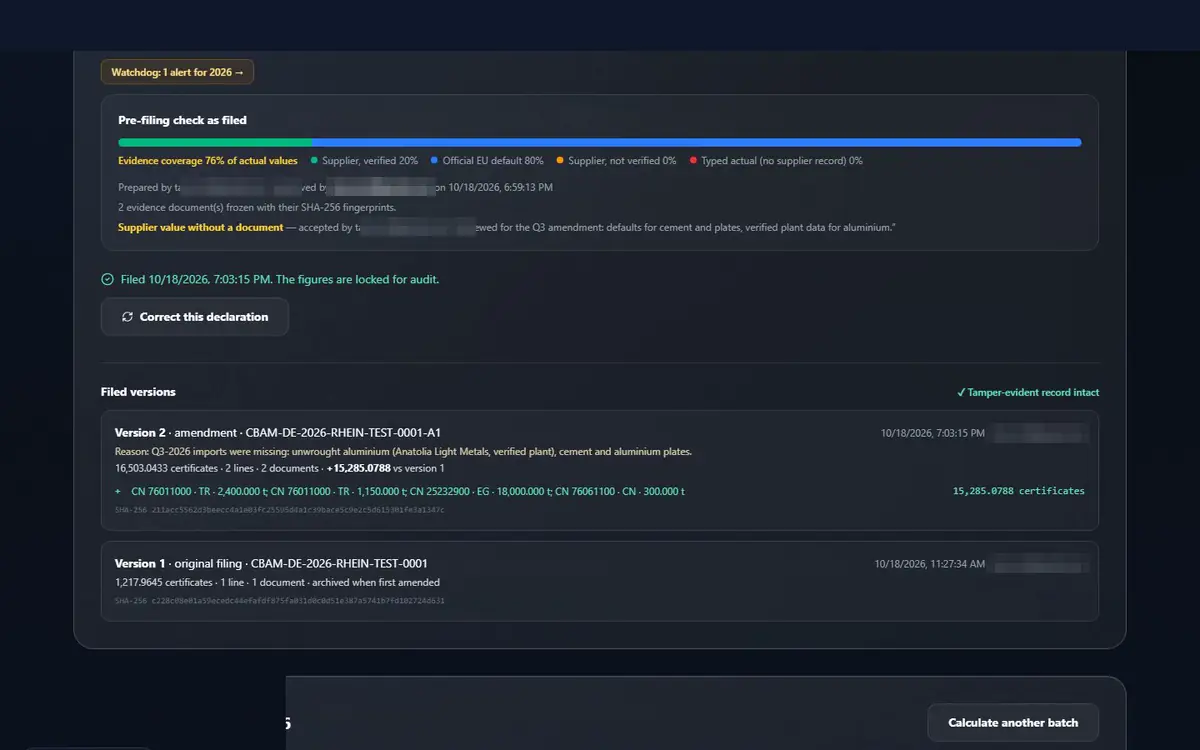
A filed declaration is never rewritten. An amendment archives the filed version exactly as filed — lines, figures, evidence, approval — in a hash-chained version record, and re-opens the declaration as the next version.
Version 1 · original filing
Version 2 · amendment
Version 3
Each version stores prev_hash → entry_hash. Change any archived byte and the check names the first altered version.
Rhein Coil Trading test filing: Q3-2026 imports were missing. The delta, +15,285.0788 certificates, matches the hand calculation.
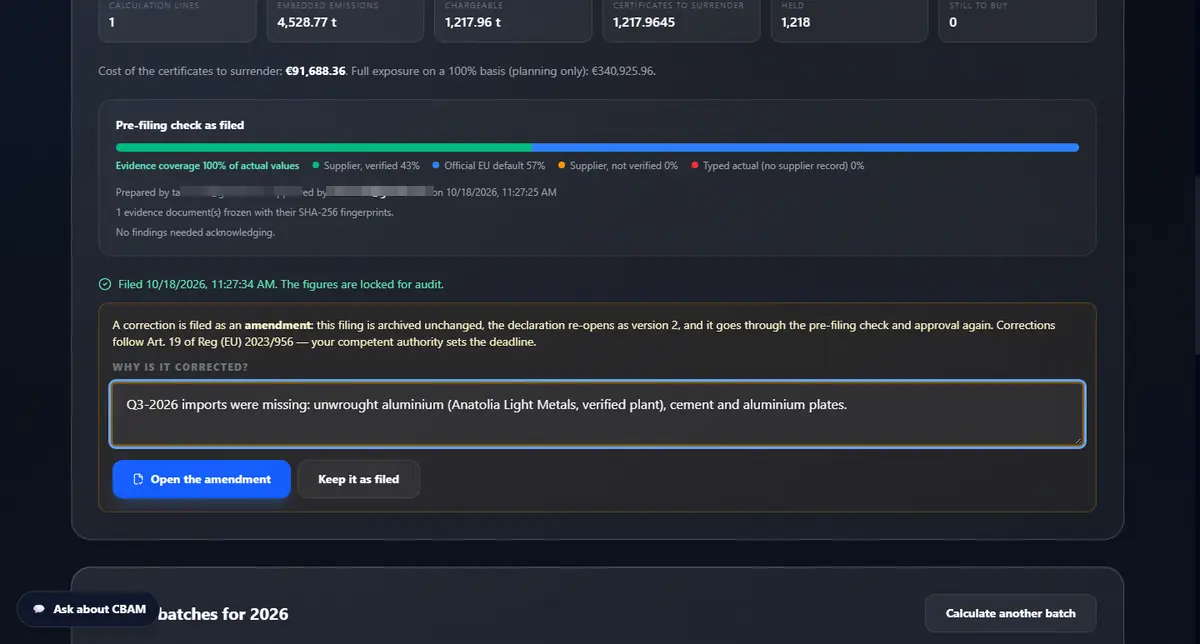
On the filed declaration press Correct this declaration and write why. Open the amendment — or Keep it as filed.
Add the missing calculation (or remove a wrong one) under Import batches, then Re-assemble. The banner shows the certificates against the filed version and every line added, removed or changed.
Run the pre-filing check again and approve — four-eyes applies to amendments too.
Press File amendment (version 2) with the registry reference of the correction.
Changed your mind before filing? Cancel amendment restores the filed declaration exactly — including which lines were included.
Read Filed versions: every version with its reason, totals, line diff and SHA-256, and ✓ Tamper-evident record intact.
Every tab, mode and control here
Correct this declaration → Why is it corrected?
Open the amendment / Keep it as filed.
Amendment in progress — version N
Re-assemble, the delta banner, Cancel amendment.
File amendment (version N)
Needs the correction’s registry reference.
Filed versions
History, line diffs and the chain check.
Documents filed with an earlier version cannot be deleted; you add new ones to the amendment. Corrections follow Art. 19 of Reg (EU) 2023/956 — your competent authority sets the deadline.
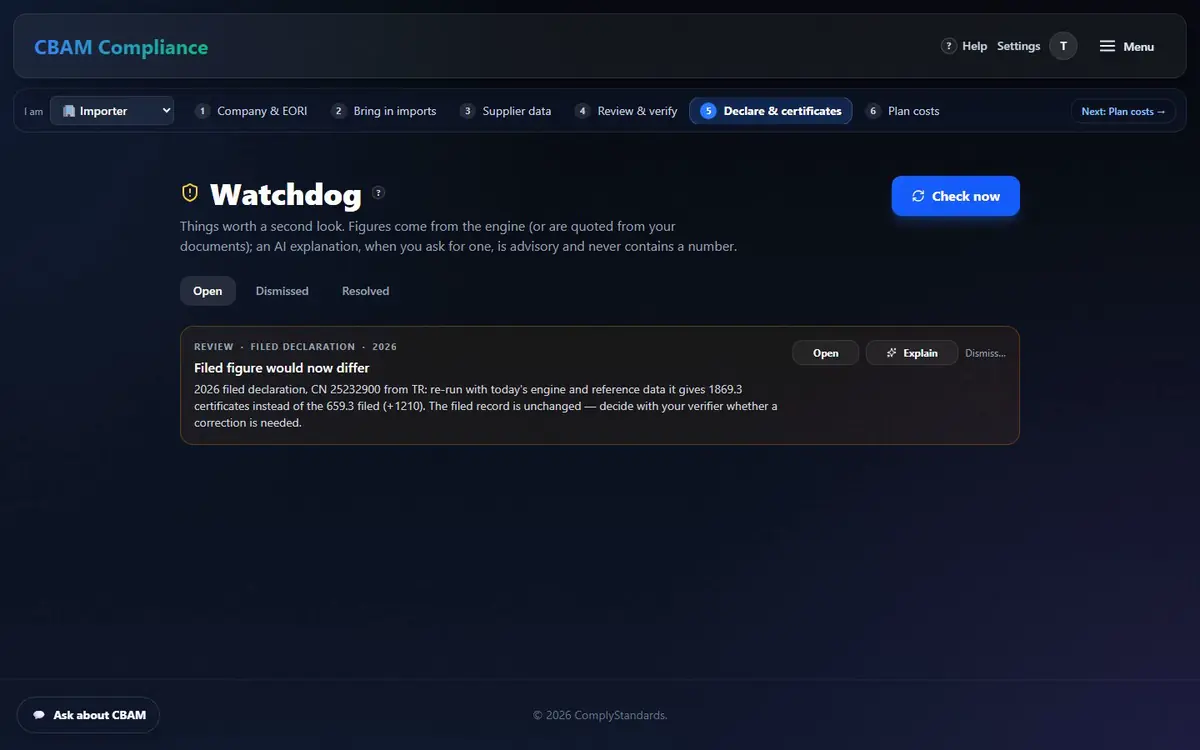
Every night, and right after changes, the Watchdog re-runs filed figures with today’s rules, compares documents with the figures they support (reading scans with OCR where available) and watches open findings. It only reports.
Live: after the annex repair, the 18 Oct Türkiye cement test filing would be 1,869.3 instead of 659.3 certificates — you decide, with your verifier, whether to correct it.
Deadlines, the 50-tonne check and the official XML
/compliance/reports
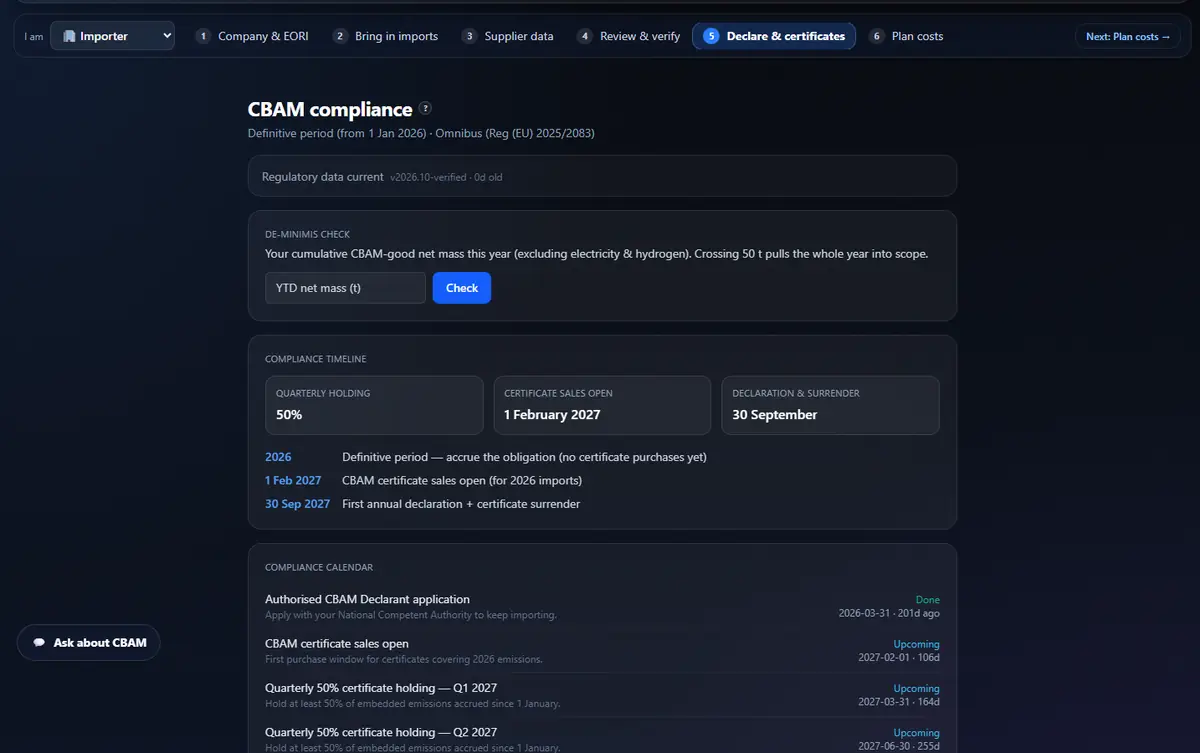
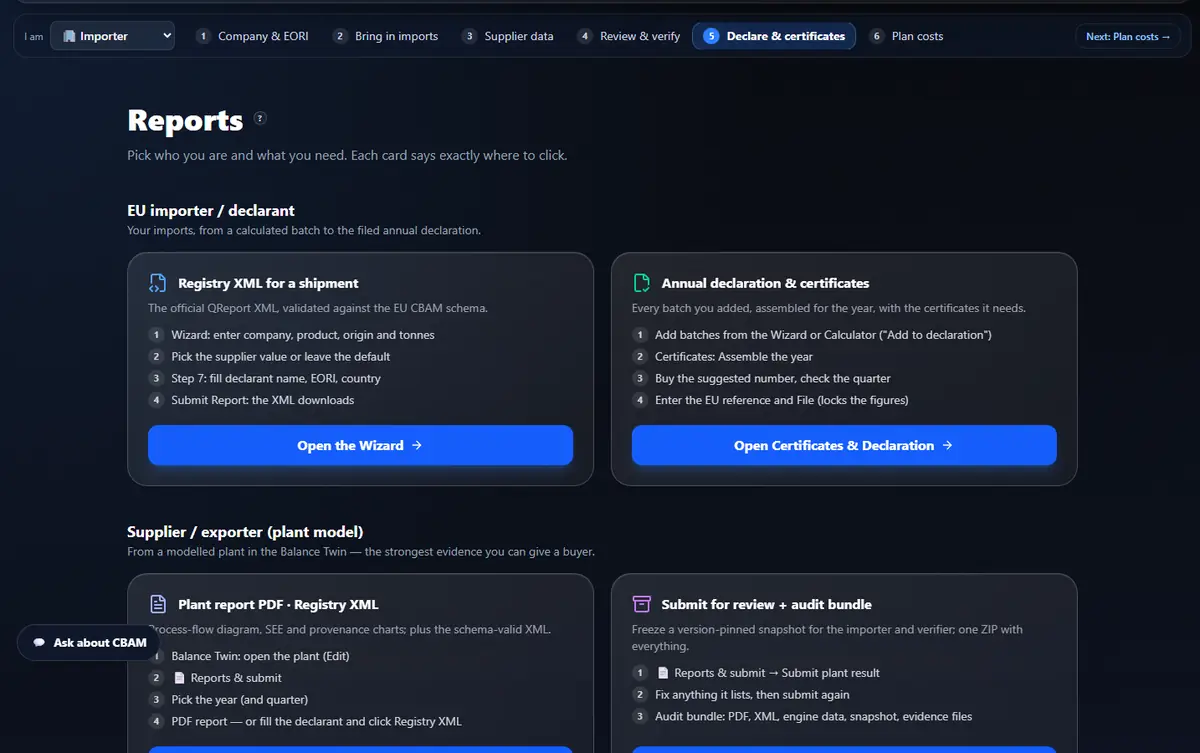
The calendar comes from the current regulatory snapshot, so it stays right when rules change. Reports tells each role exactly where its official file comes from.
On Compliance enter your year-to-date net mass and press Check: below 50 t you are exempt; crossing it brings the whole year into scope (electricity and hydrogen never count).
Read the timeline: quarterly holding (50 %), certificate sales open (1 February 2027), declaration & surrender (30 September).
On Reports, pick your card: Open the Wizard for one shipment’s XML, or Open Certificates & Declaration for the annual declaration.
Upload the XML to the EU CBAM Registry yourself — the app prepares and validates it; nothing submits to the EU on your behalf.
Every tab, mode and control here
De-minimis check
Year-to-date net mass → Check.
Compliance timeline
Holding, sales open, declaration & surrender.
Compliance calendar
Upcoming dated obligations.
Reports · role cards
Importer, supplier and verifier: where each file comes from.
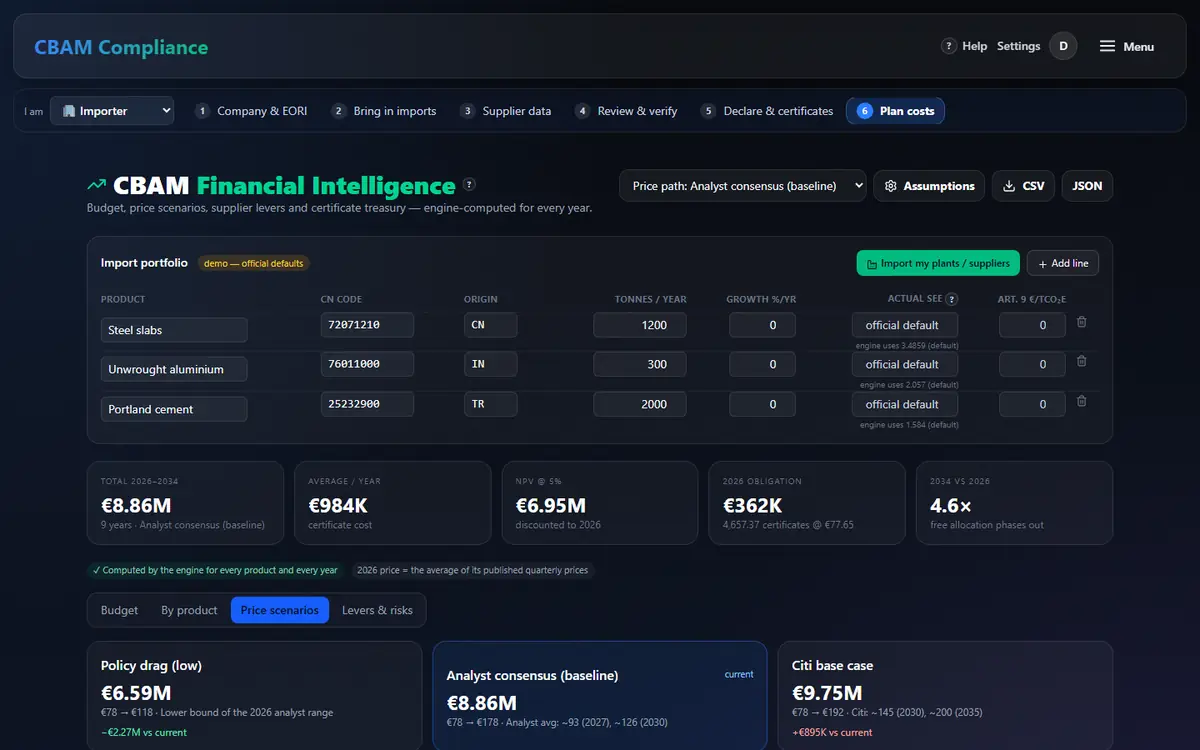
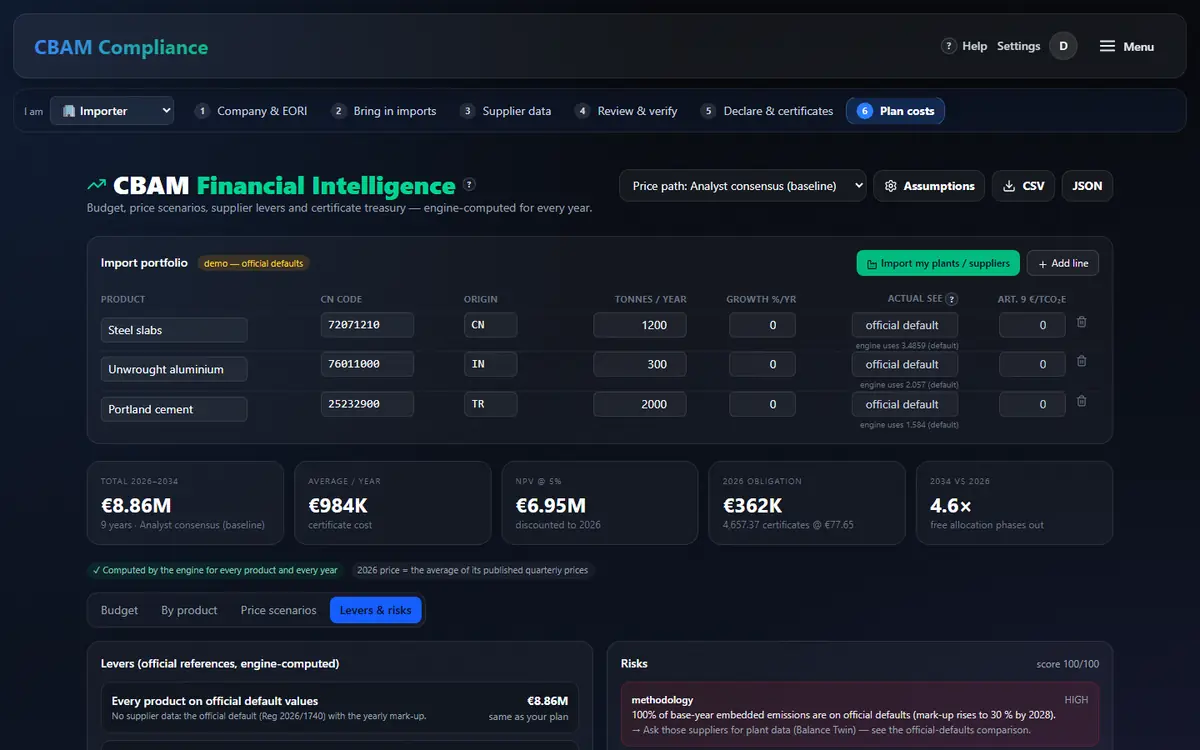
Know next year’s CBAM bill — computed, not estimated
/forecasting
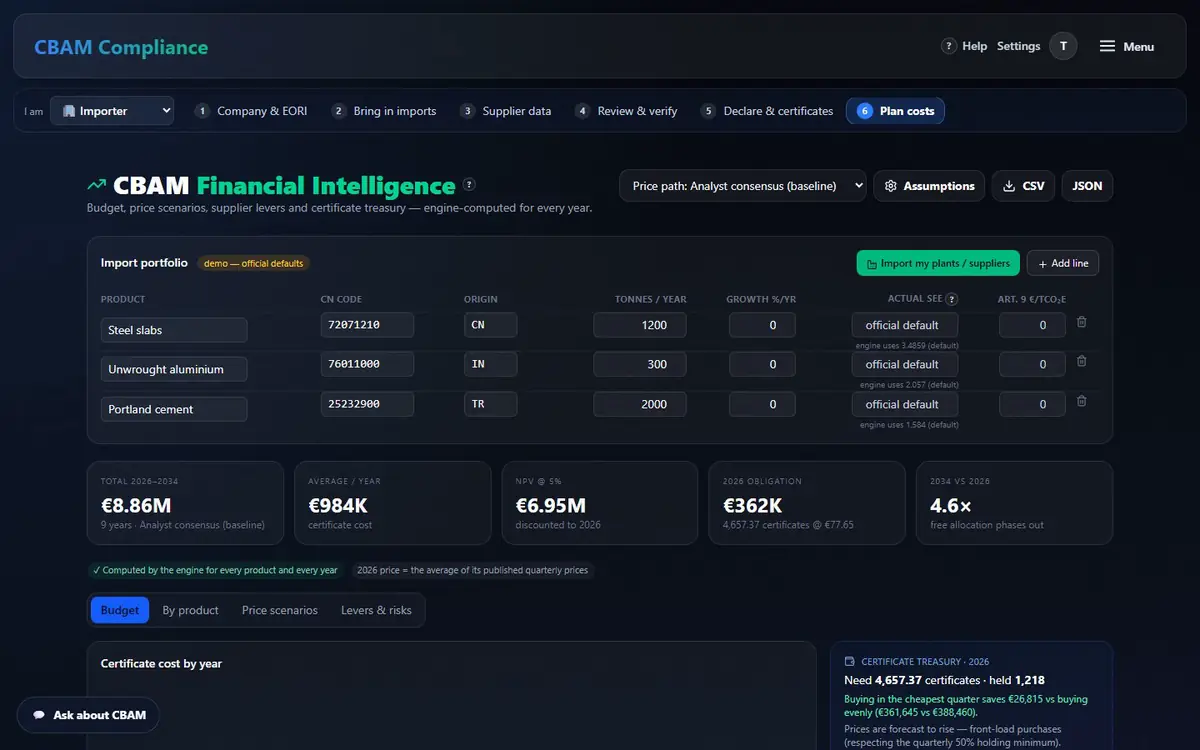
Forecasting runs the engine for every product and every year: the mark-up, the free-allocation phase-out, the official benchmark and that year’s price. Your browser computes nothing; nothing is stored or filed.
The page opens on a demo portfolio (badged). Press Import my plants / suppliers to bring in engine SEE from your plants and suppliers, then enter tonnes per year; Add line for more.
Leave Actual SEE empty to use the official default with that year’s mark-up. Enter a figure only from supplier or plant data.
Pick a Price path; the first year uses the published price. Assumptions: your own prices, the NPV discount rate, a yearly supplier SEE reduction (actual data only).
Read Budget (cost, certificates, free allocation per year), By product, Price scenarios and Levers & risks.
The certificate treasury card plans purchases on the engine’s certificate count. Export with CSV or JSON.
Every tab, mode and control here
Budget
Year by year: cost, certificates, free-allocation adjustment.
By product
Each product’s own engine figures.
Price scenarios
Published price paths compared.
Levers & risks
Your plan vs all-official-defaults and suppliers at the EU benchmark.
Assumptions
Own prices, discount rate, supplier SEE reduction.
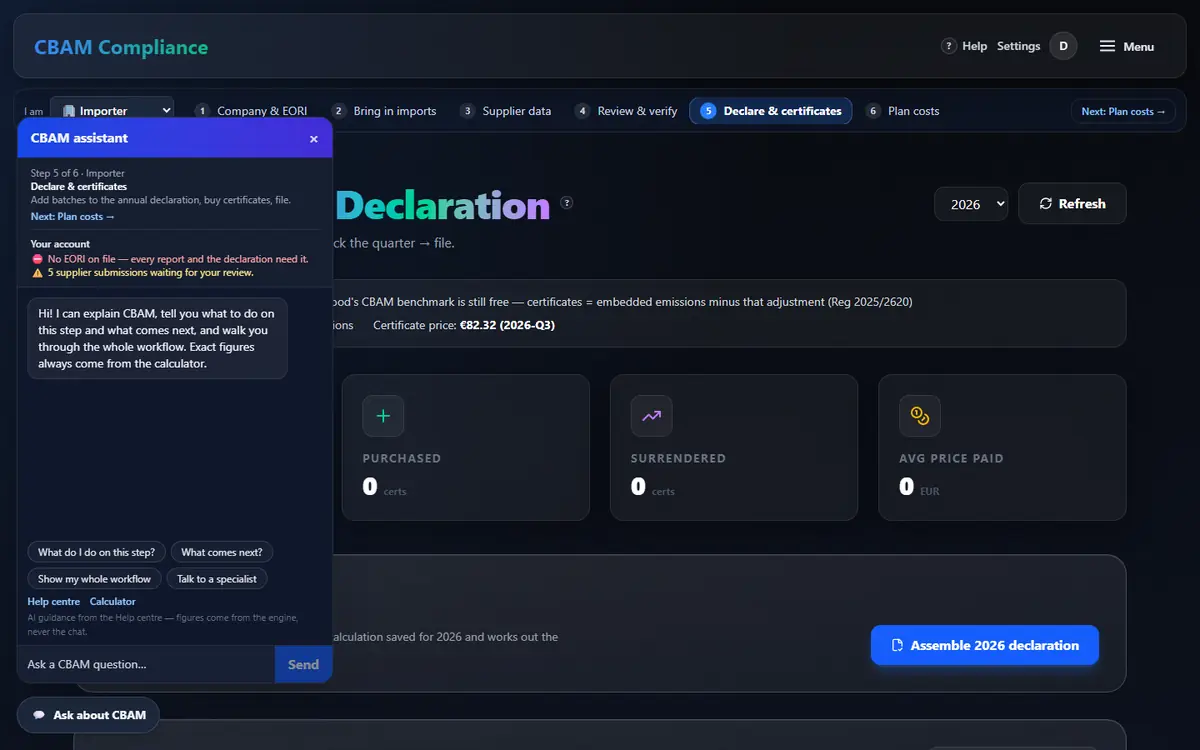
The Ask about CBAM button (💬, bottom left) knows your workflow step and what is open in your account: findings, the declaration, Watchdog alerts, invitations. It may repeat a figure from your account, never add one.
Press Ask about CBAM. It shows your step (e.g. “Step 5 of 6 · Importer”) and your account status.
Ask in your own words, or tap a suggestion. Answers are grounded on the Help topics.
Any number not in its sources is replaced by the Help answer — the number guard is enforced on the server.
You will sign this declaration. Here is what stands behind every figure you sign — each item names the mechanism that enforces it.
Numbers only from the engine
Every emission, certificate and euro figure is computed by one calculation engine. The AI assistant explains and guides, and is blocked from stating a figure — it routes you to the calculator.
api/app/services/cbam_engine.py · AI number guard (support_guide.py)
Every role sees the same figure
Importer, supplier, verifier and the engine show the identical result — checked live: the Anatolia Light Metals aluminium plant is SEE 1.53 for all four. All 25 Annex I routes recompute byte-identically, in any entry order.
tests/test_reproducibility.py
It fails closed, never guesses
If official reference data cannot be read, the app answers “nothing was calculated” (503) instead of substituting a value. An unknown country or unit is a reported row error, never a best effort.
Default values come from the Official Journal, extracted cell by cell (plain text extraction shifts rows). Example: Türkiye grey cement 1.36 + 0.08 = 1.44 tCO₂e/t; “NA” is Namibia (0.89), never “missing”.
One list of rules — no AI — re-derives every stored line, compares with the previous period and with plant production. Red blocks filing; amber needs a named person and a reason.
app/services/findings.py · FindingAck
Tamper-evident history
Filed declaration versions and every plant-layout change are hash-chained: each entry seals the one before it, and the check names the first altered entry. A filed version is never rewritten.
After filing, the Watchdog re-runs figures with today’s rules and compares documents with the numbers. It caught a pre-fix test filing that would now be 1,869.3 instead of 659.3 certificates — and only reported it.
app/services/watchdog.py
Self-hosted, PII encrypted
The platform runs in your own cloud. Personal data is encrypted at rest with your own key, and supplier links are sealed, never stored in plain text.
What we do not claim: the app prepares and validates your declaration XML — it does not file in the EU CBAM Registry for you, and it is not itself an accredited verifier or a certification. Forecast prices are assumptions, never certified figures.
Nothing missed
Coverage checklist
Every screen, tab, mode and drawer of the importer workflow, mapped to the section that explains it — 20 screens, 73 items, 100 % covered. The same list is checked by an automated browser test against the app.