Answer your EU buyer once — and prove your plant is better than the default.
No EU forms to learn, no account to create. Open the link, enter what your plant really emits (or draw the plant), and your buyer sees a figure the engine computed — in English or 中文.
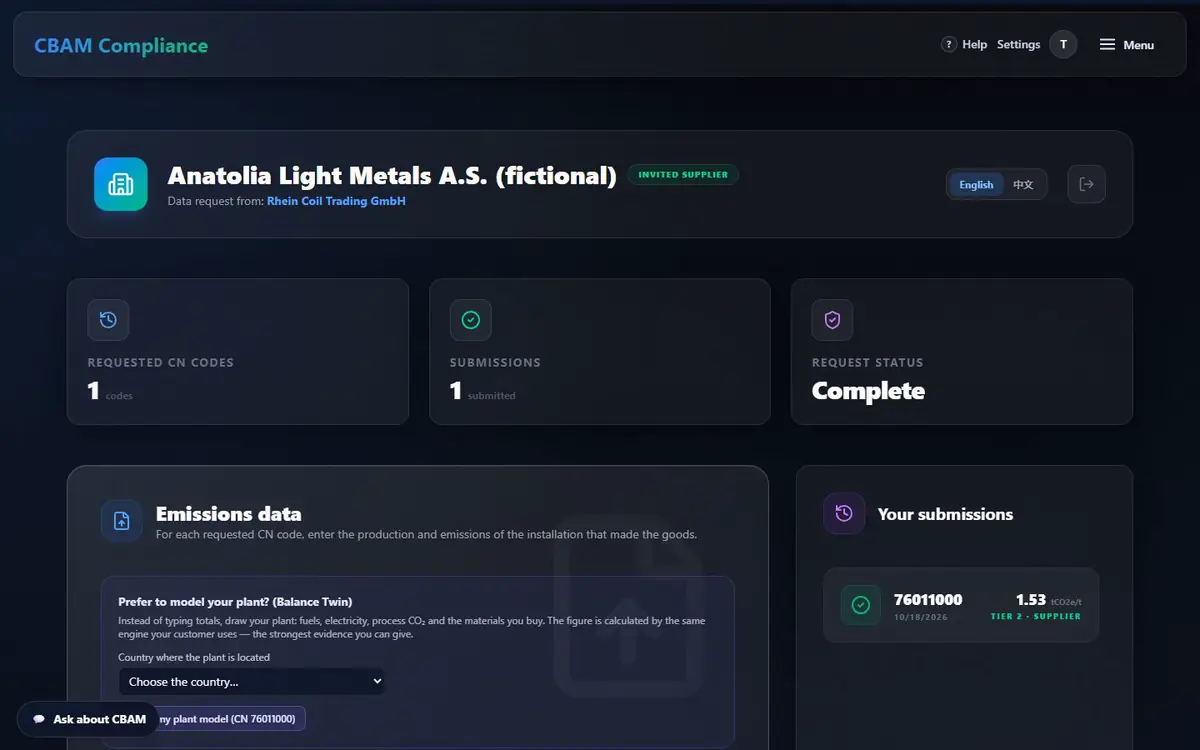
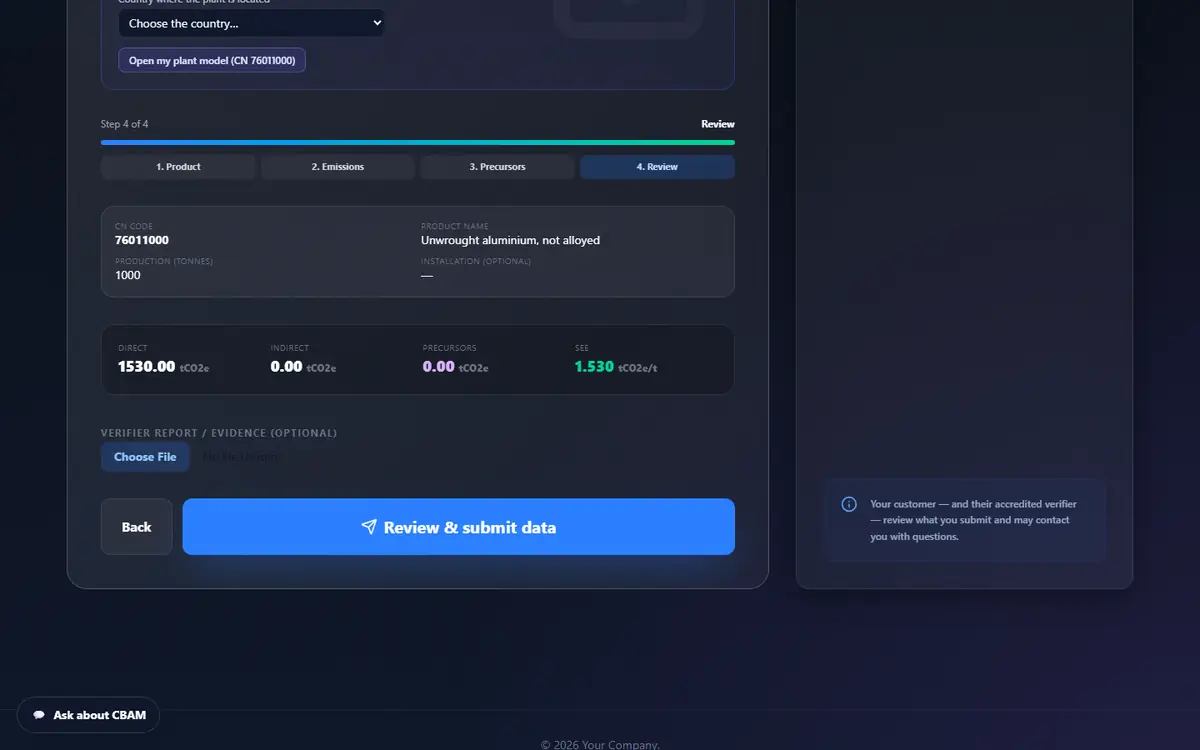
1.53SEE tCO₂e/t of the Anatolia Light Metals test plant — the same for supplier, buyer, verifier and engine
4 stepsProduct · Emissions · Precursors · Review — on a phone
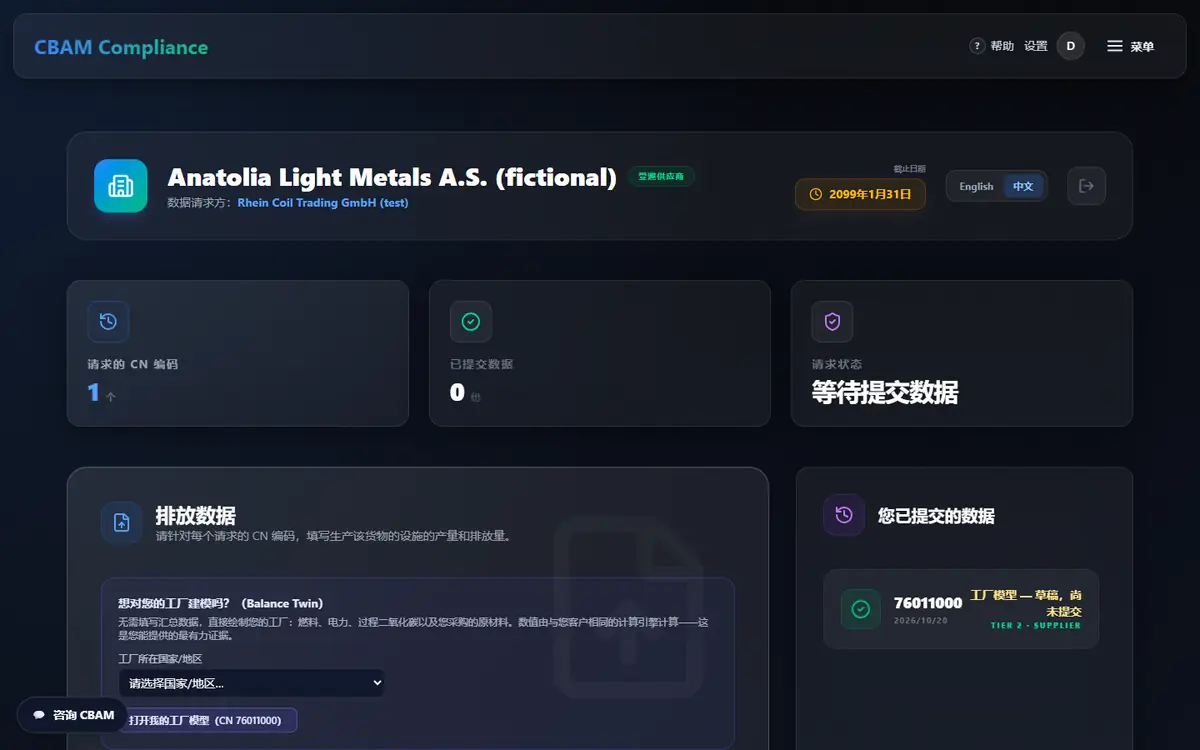
English · 中文the whole portal, chosen by your buyer or by you
Before you start
Five supplier pains — solved one by one
You are not the one who files in the EU — but your buyer’s cost depends on your data. Here is how the portal makes that easy and safe.
EU forms, unfamiliar terms (SEE, precursors, Annex II…) and no idea what number goes where.
A 4-step wizard asks plain questions, says where to find each number, computes the SEE for you and checks it against the typical range.
You do not want to send your process data to anyone who asks.
A link scoped to one buyer and the CN codes they buy. Only that buyer — and the verifier they appoint — sees what you submit, and only when you submit.
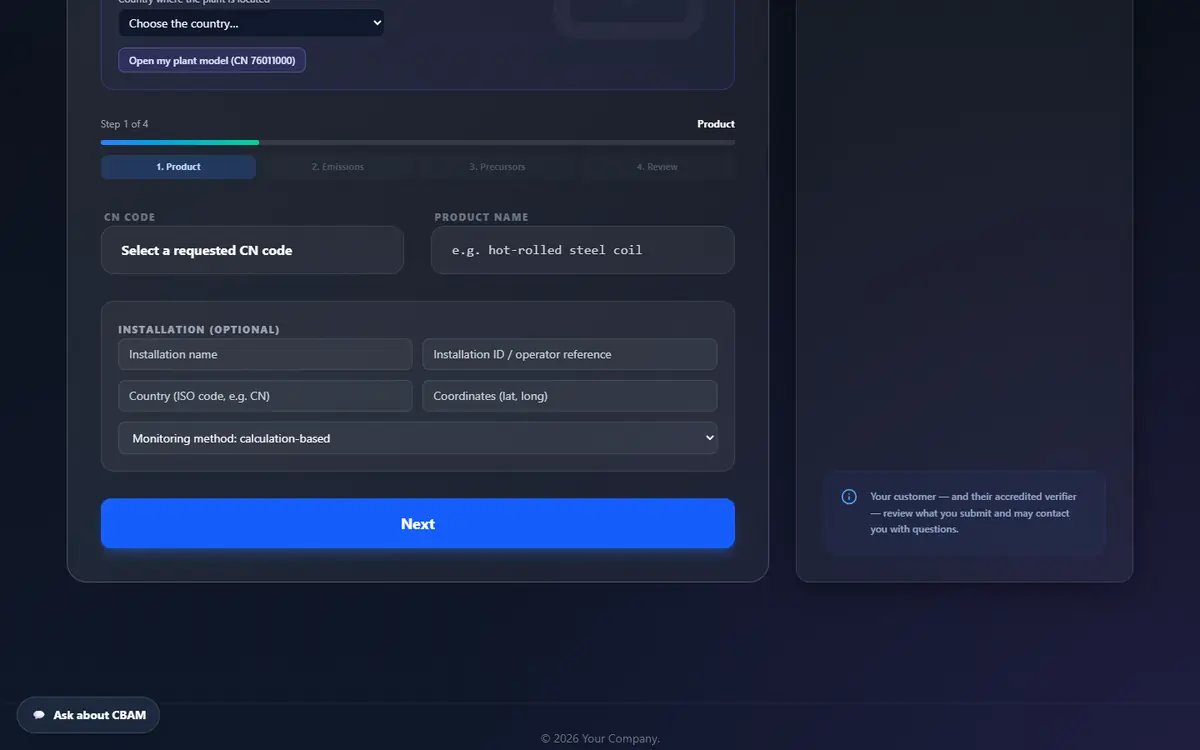
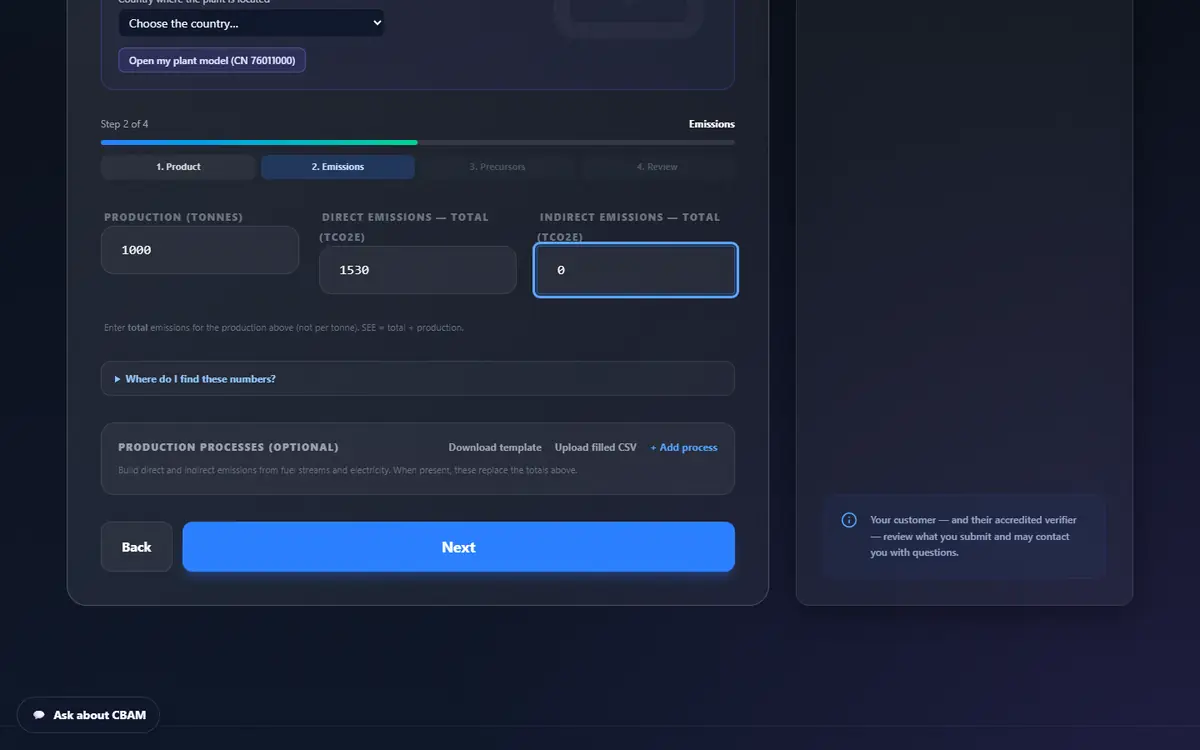
Product → Emissions → Precursors → Review. Enter totals for the period; the portal computes SEE = total ÷ production and checks it against the typical range for your sector.
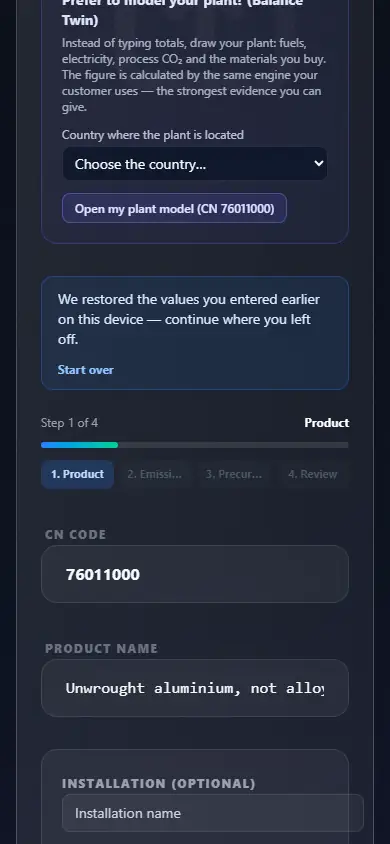
Product: Select a requested CN code, the Product name; optionally the installation name, ID, country (ISO), coordinates and monitoring method. Next.
Emissions: Production (tonnes), Direct emissions — total (tCO2e), Indirect emissions — total (tCO2e). Open Where do I find these numbers? for the source of each.
Optional: build the totals from Production processes — fuel streams (qty, unit, EF) and electricity (MWh, grid EF, renewable %); Download template / Upload filled CSV.
Precursors (optional): + Add precursor with mass, SEE direct / indirect and the country it was made in. No SEE? The official EU default for that origin applies.
Review: check the live Direct · Indirect · Precursors · SEE, attach your verifier report, then Review & submit data.
Interrupted? The form autosaves on this device — come back and continue, or Start over.
Every tab, mode and control here
Step 1 · Product
CN code, product name, installation (optional).
Step 2 · Emissions
Totals, Where do I find these numbers?, optional production processes (template download / CSV upload).
Step 3 · Precursors
Add precursor: mass, SEE direct/indirect, origin (default applies when empty).
Step 4 · Review
Live SEE with the typical-range check, evidence upload, Review & submit data.
Your submissions
What you sent; your buyer and their verifier may contact you with questions.
Iron & steel, aluminium and hydrogen: only direct emissions count for CBAM (Annex II). The portal tells you so on the form.
Totals for the period, not per tonne. A SEE far outside the typical range is flagged amber — check units (kg vs t) before you submit.
Ask your own supplier — the figure links up the chain
/supplier-portal
Your buyer’s CBAM figure includes your precursors. A figure from your own supplier, linked here, is stronger than one you type or the default.
Your sub-supplier
You
Your EU buyer
Their verifier
EU registry
When the sub-supplier submits, the server writes its engine figure into your precursor by link and recomputes your plant — and every plant above it. Nobody copies a number.
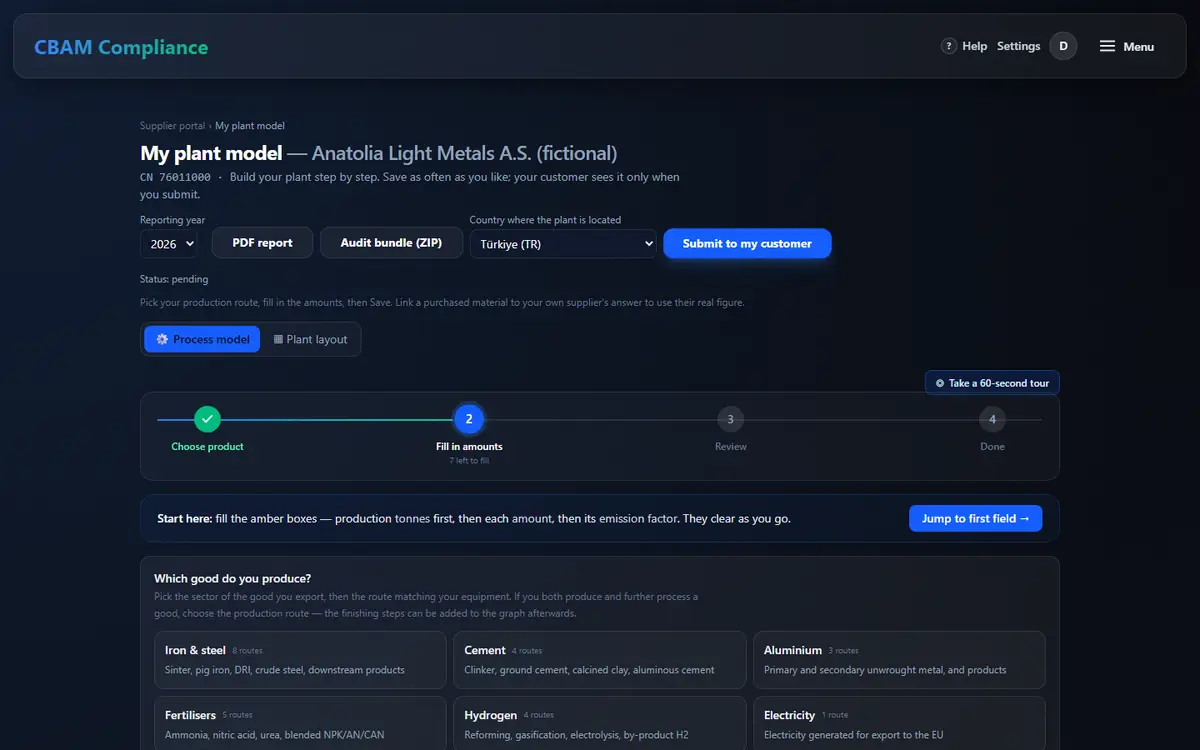
Instead of typing totals, draw your plant: fuels, electricity, process CO₂ and the materials you buy. The figure is calculated by the engine — the strongest evidence you can give.
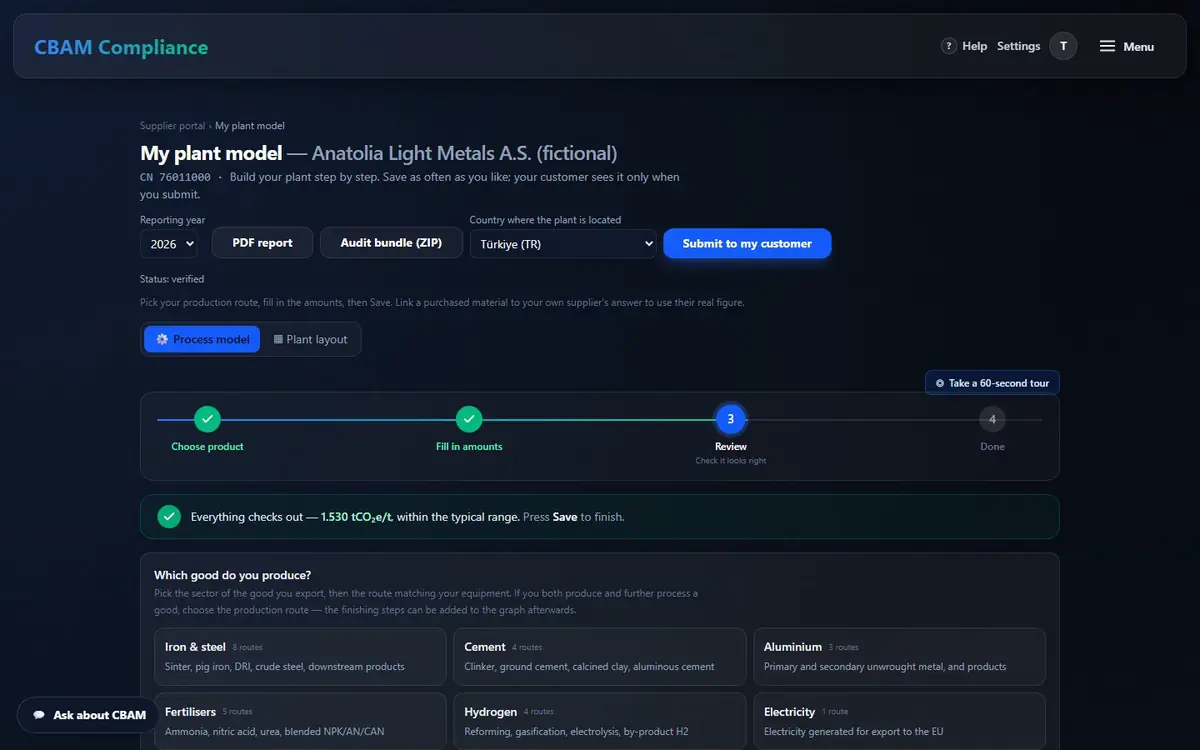
Rhein Coil Trading test supplier: SEE 1.53 tCO₂e/t, status verified.
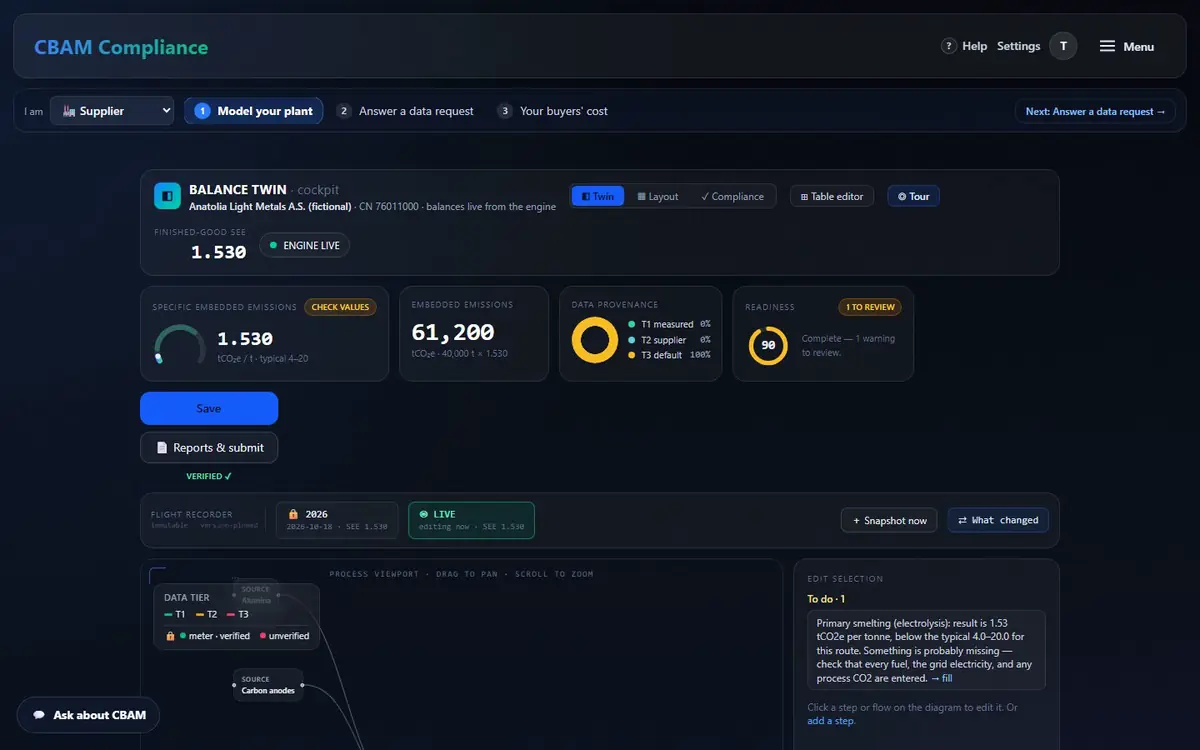
Your own Balance Twin: cockpit, table editor, tour
/twin/twin/[id]/edit/twin/[id]/build
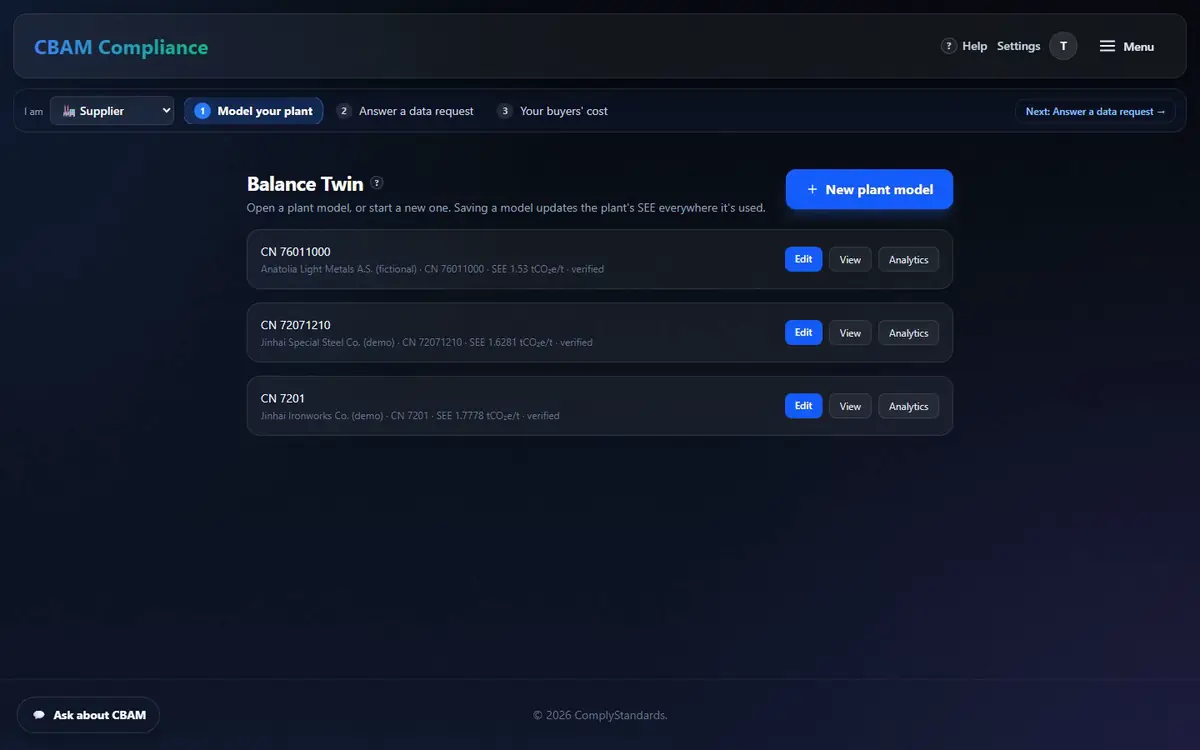
With an account you keep a plant library: one model per installation, reused every period. The cockpit is the visual editor; the table editor is for fast bulk entry. Both save the same plant.
Inputs
Process
Good
Stack
Arrow width follows the magnitude of each flow. Every balance — and the SEE — is computed by the engine; the drawing never invents a figure.
Model your plant → New plant model: plant name, CN code, country → Create and open the editor.
Cockpit: click a step or flow on the canvas and edit it under Edit selection. The unit is constrained to what the engine expects; typical factors are one tap away and marked as defaults.
Work the To do list until readiness is green, then Save. Guardrails refuse connections that break the regulation — on the canvas and again on save.
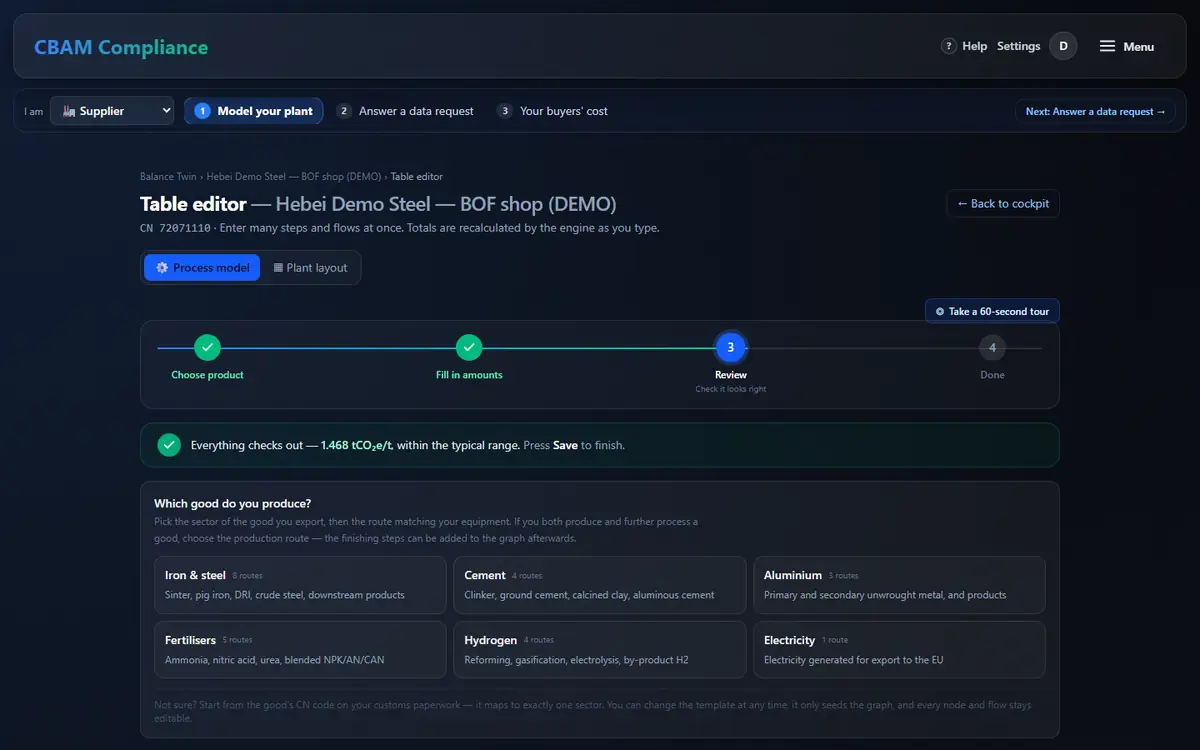
⊞ Table editor: every step and flow in rows with dropdowns; paste figures or ⤒ Upload CSV / Excel; Save current as lot; Compare (green power · zero-carbon fuel).
Next period: carry forward — structure kept, quantities cleared, factors flagged to Confirm.
◎ Tour / ◎ Take a 60-second tour show it in a minute.
Every tab, mode and control here
Instruments
SEE gauge with band check, embedded, T1/T2/T3 provenance, readiness.
Canvas + Edit selection
Click to edit; drag to rearrange; guardrails.
◧ Twin / ▦ Layout / ✓ Compliance
Model · physical plant · certificates and declaration.
⊞ Table editor
Process model / Plant layout modes, stepper, paste, upload, lots, compare.
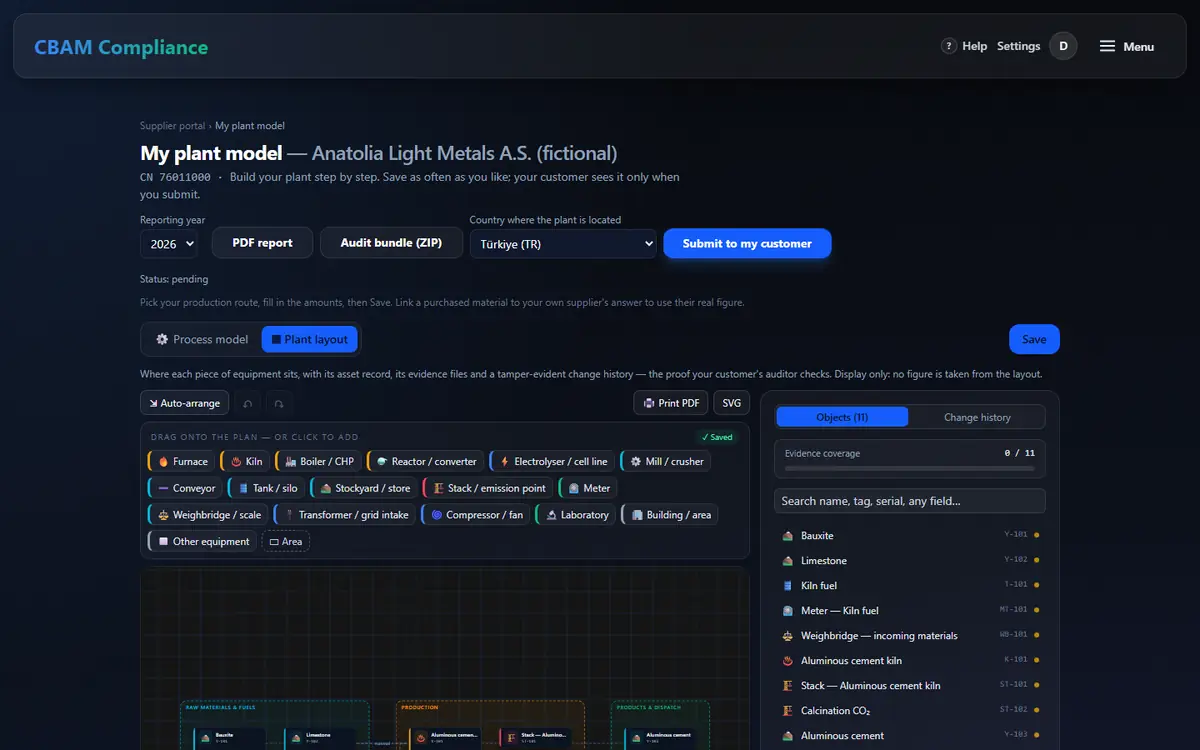
Draw the physical plant — with evidence on every object
/twin/[id]/edit/supplier-portal/twin/[id]
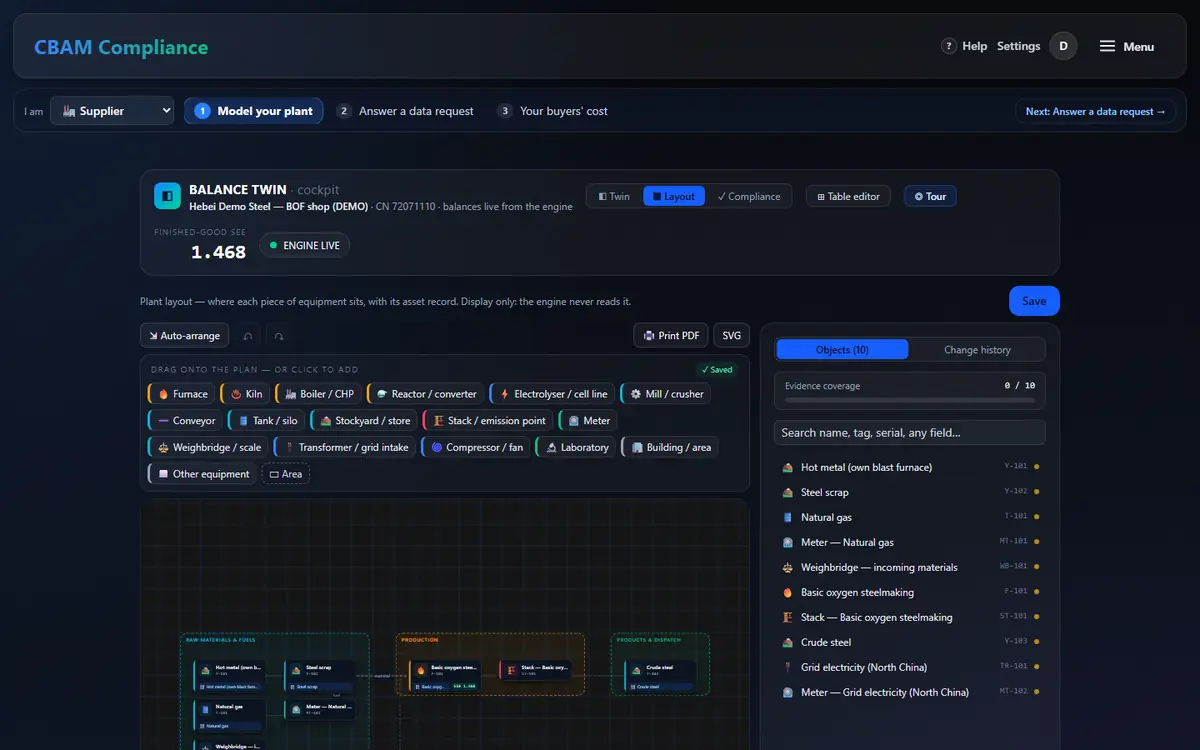
The layout is a 2-D drawing of your equipment and areas on the same plant. An object links to a process step (and shows its engine SEE) or to a registered meter — it never copies a figure. The engine never reads the layout.
Open ▦ Layout (cockpit) or ▦ Plant layout (portal / table editor).
On an empty plan press ✨ Starter layout: a complete first layout from your process model (equipment, meters, stacks, areas). Or drag items from the palette — a tap adds at the centre; works with touch.
Select an object: name, tag, catalogue fields, a link to a process step or a meter. ⇲ Auto-arrange tidies without changing data; ↶ ↷ undo / redo.
Attach evidence to a saved object (PDF / JPEG / PNG): the server reads the photo’s EXIF and its distance to the installation — within 1 km counts as on site. Evidence is never deleted, only withdrawn with a reason.
Change history lists every change (append-only, hash-chained). 🖨 Print PDF (or SVG, once the plan has objects) makes an A3 drawing with a title block and the asset register.
Every tab, mode and control here
Palette
Equipment catalogue (drag / tap / keyboard).
✨ Starter layout · ⇲ Auto-arrange · ↶ ↷
Starter layout on an empty plan, then tidy; undo / redo (Ctrl+Z / Ctrl+Shift+Z).
Objects · Change history
Searchable objects; append-only history.
Evidence
Per object: upload, EXIF + distance, withdraw with reason.
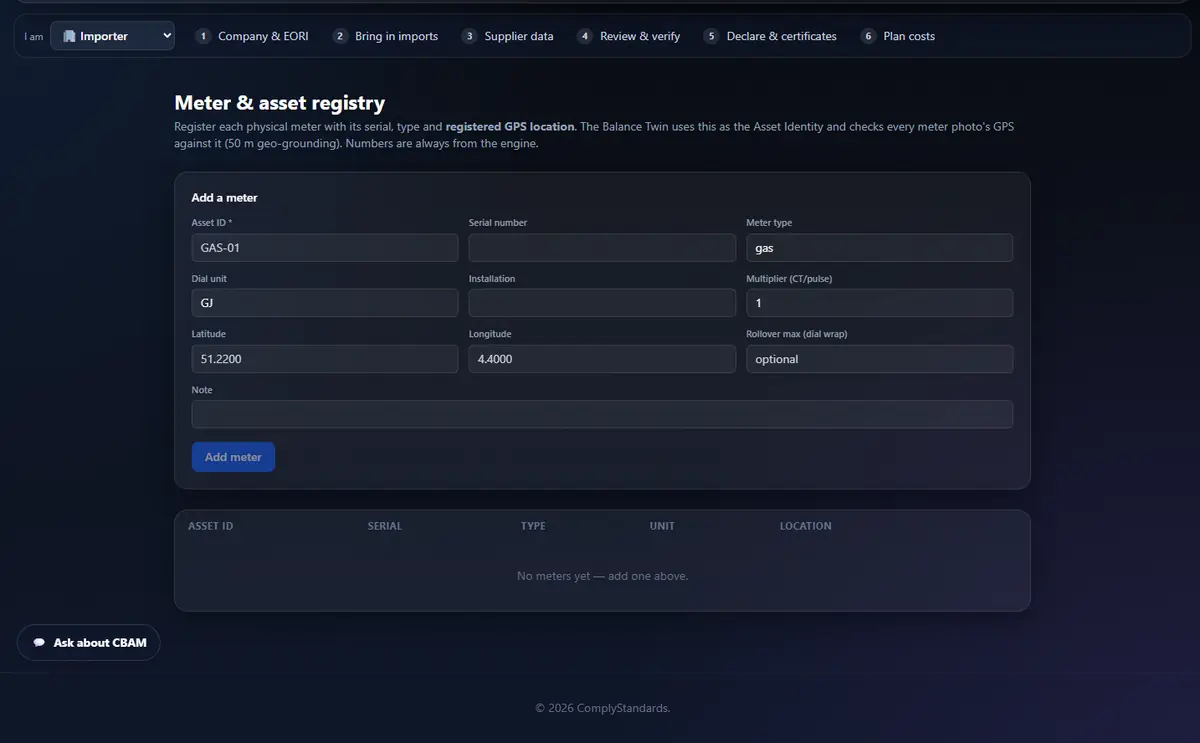
Turn a meter reading into locked, geo-checked evidence
/twin/[id]/edit/admin/meters
For a metered stream (gas, electricity…), the amount comes from a meter photo — not a typed number. The server checks where the photo was taken and computes the consumption.
Register the meter once (Meter & asset registry): asset ID, serial, type, unit, multiplier, rollover and its GPS location → Add meter.
On a metered flow open the meter evidence drawer: enter the dial start and end and attach the dial photo.
The server stores the photo, reads its EXIF, scores the 50 m geo check against the meter’s location and computes the net consumption (rollover and multiplier included; a negative result is refused).
Lock the reading: the flow becomes immutable. Every metered stream shows a lock and a green / red geo badge on the diagram.
Submit for review, freeze snapshots, download the evidence
/twin/[id]/edit/twin/[id]/analytics
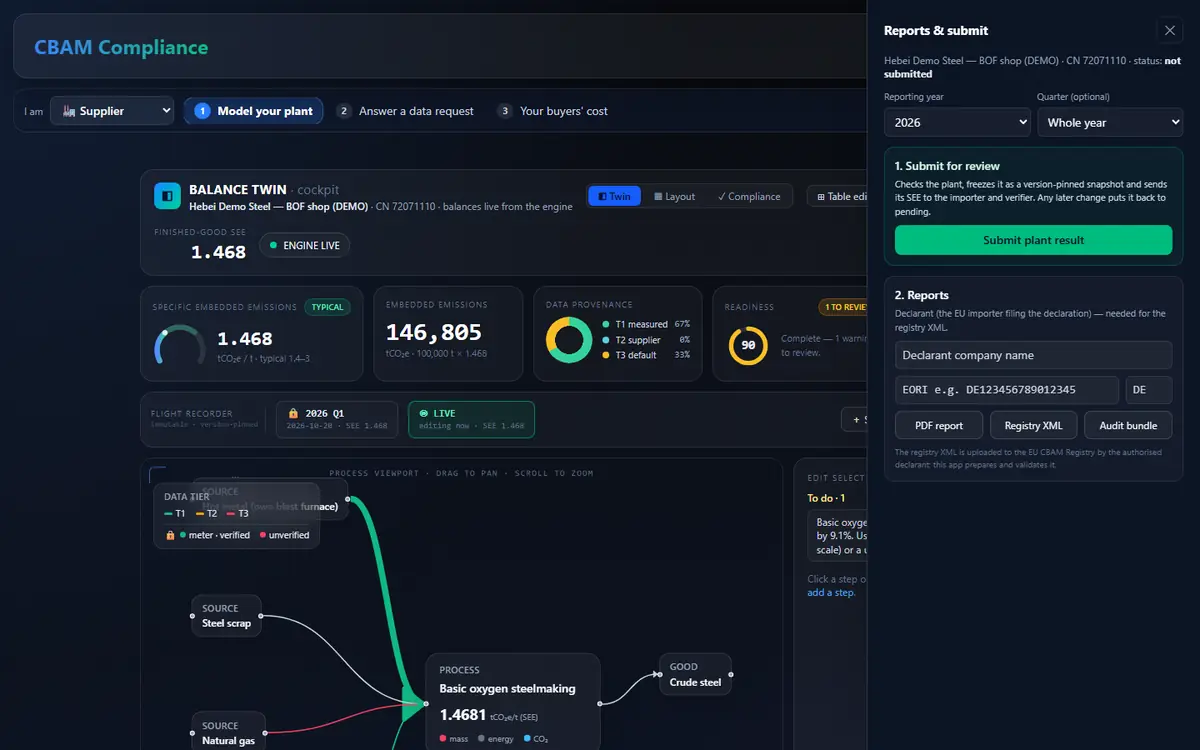
Submitting freezes a version-pinned snapshot your buyer and their verifier review. If a verified plant’s SEE changes later, it goes back to review automatically.
Open 📄 Reports & submit. Pick the year (and quarter, or whole year).
1. Submit for review → Submit plant result: a frozen, version-pinned snapshot; the status becomes pending. Plausibility errors block it.
2. Reports: PDF report, Registry XML (enter the declarant name, EORI and country), Audit bundle — one ZIP with the PDF, XML, engine data, snapshot and evidence.
Flight recorder: + Snapshot now freezes the period; What changed shows every engine-derived delta from the last snapshot to live.
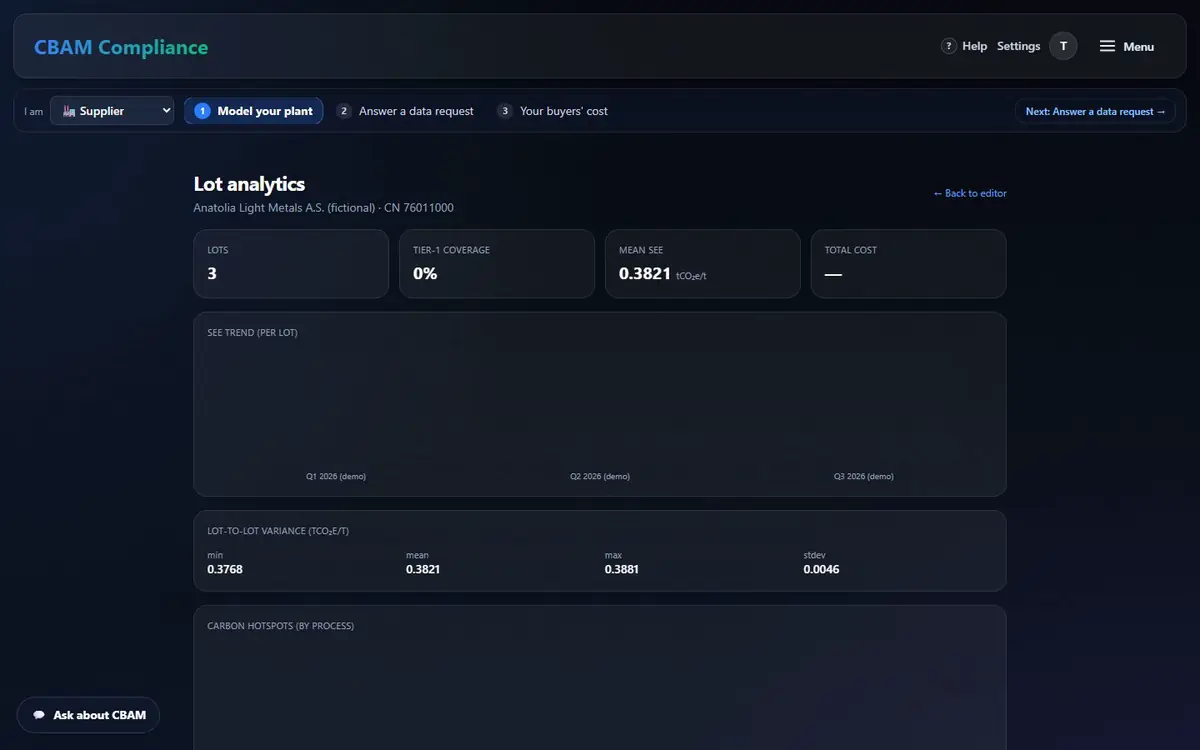
View analytics → / Analytics: save batches as lots and watch SEE per lot, variance and hotspots.
Every tab, mode and control here
Reports & submit drawer
Year / quarter · Submit plant result · PDF · Registry XML · Audit bundle.
Flight recorder
Snapshot now · read-only archive · What changed (last snapshot → live).
Lot analytics
Lots, SEE trend, variance, carbon hotspots, data-quality coverage.
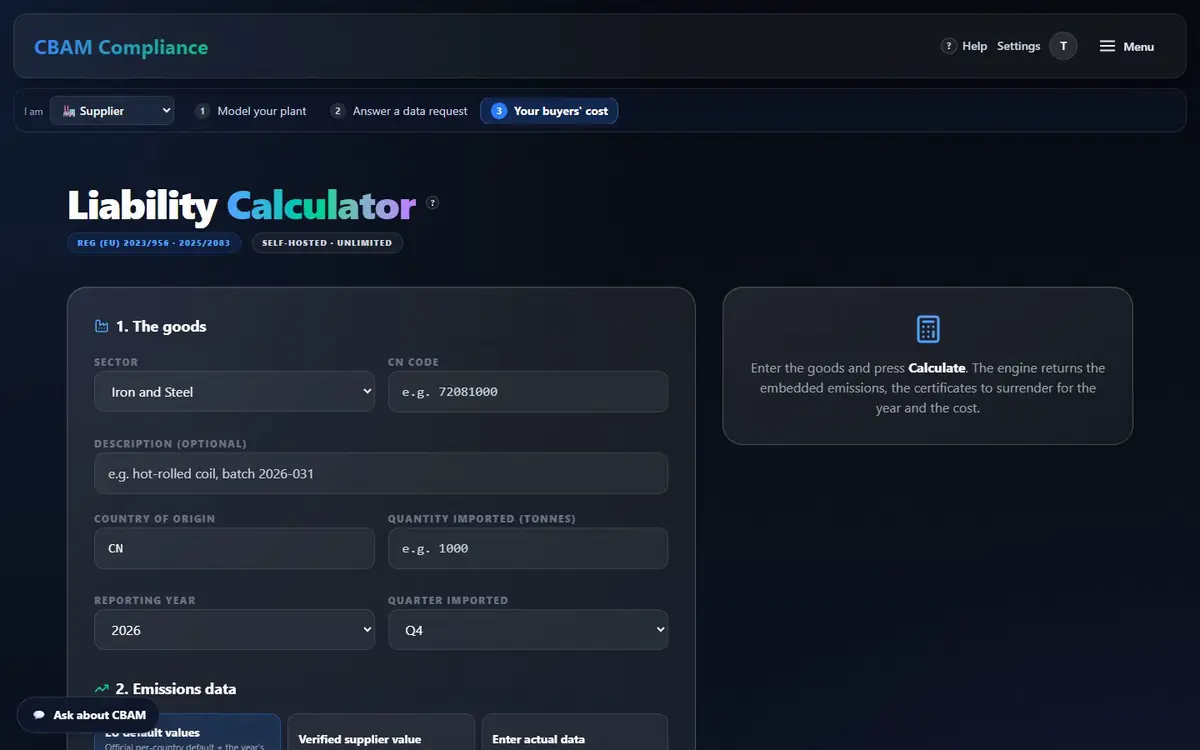
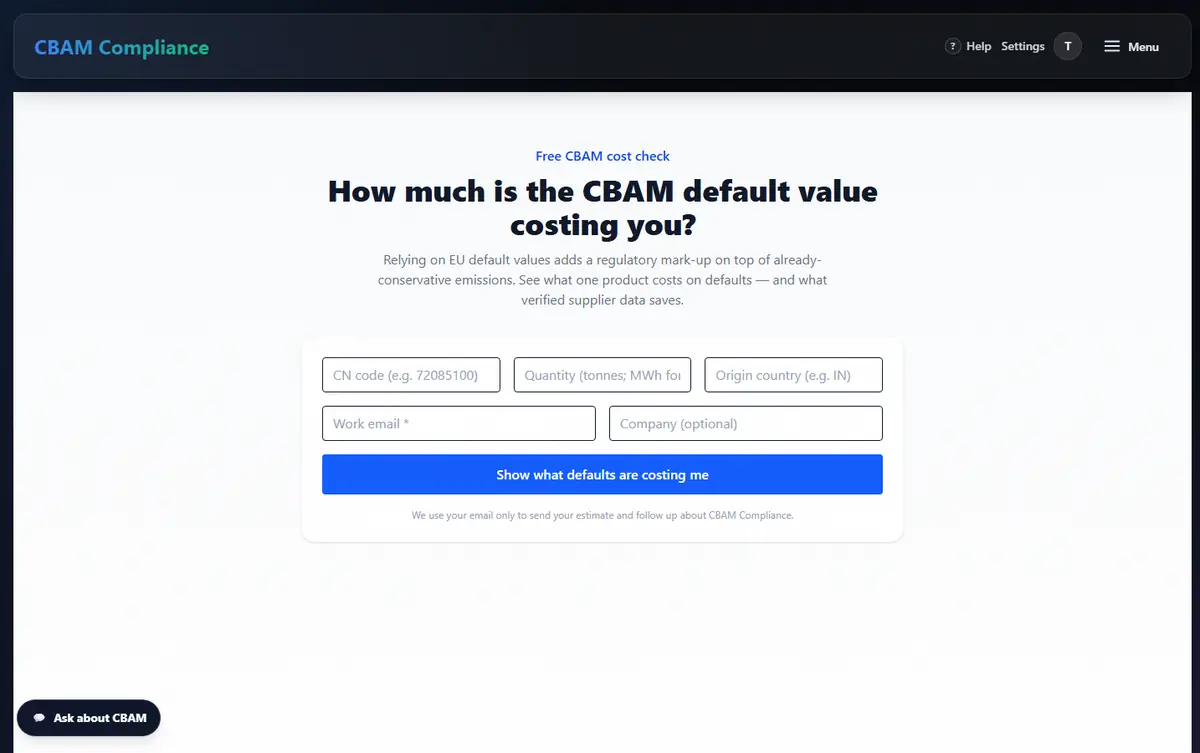
Your figure is a selling point. Run the same engine your buyer runs: the official default (with its mark-up) against your own data, for a batch they buy.
Your buyer, their verifier and you look at the same number — computed once, by the same engine, from what you entered.
Numbers only from the engine
Every emission, certificate and euro figure is computed by one calculation engine. The AI assistant explains and guides, and is blocked from stating a figure — it routes you to the calculator.
api/app/services/cbam_engine.py · AI number guard (support_guide.py)
Every role sees the same figure
Importer, supplier, verifier and the engine show the identical result — checked live: the Anatolia Light Metals aluminium plant is SEE 1.53 for all four. All 25 Annex I routes recompute byte-identically, in any entry order.
tests/test_reproducibility.py
Official EU annexes, read cell by cell
Default values come from the Official Journal, extracted cell by cell (plain text extraction shifts rows). Example: Türkiye grey cement 1.36 + 0.08 = 1.44 tCO₂e/t; “NA” is Namibia (0.89), never “missing”.
A meter reading carries its photo, the EXIF read by the server and a 50 m geo check against the meter’s registered location. Once locked, the flow it feeds cannot change.
api/v1/meters.py · geo.py · photo_exif.py
Tamper-evident history
Filed declaration versions and every plant-layout change are hash-chained: each entry seals the one before it, and the check names the first altered entry. A filed version is never rewritten.
One ZIP: report PDF, registry XML, engine data, the frozen snapshot with version pins, evidence files and a reproducibility check — today’s engine must give the same figures from the frozen plant.
twin.build_audit_bundle · verifier_workspace.py
Self-hosted, PII encrypted
The platform runs in your own cloud. Personal data is encrypted at rest with your own key, and supplier links are sealed, never stored in plain text.
If official reference data cannot be read, the app answers “nothing was calculated” (503) instead of substituting a value. An unknown country or unit is a reported row error, never a best effort.
What we do not claim: the app prepares and validates your declaration XML — it does not file in the EU CBAM Registry for you, and it is not itself an accredited verifier or a certification. Forecast prices are assumptions, never certified figures.
Nothing missed
Coverage checklist
Every screen, tab, mode and drawer of the supplier workflow, mapped to the section that explains it — 9 screens, 43 items, 100 % covered. The same list is checked by an automated browser test against the app.